
Databases
Databases
This section is where you manage all SQL database connections required by your SCADA project to store time-stamped tag data (Historical Tags), alarm/event logs, and data used by the Reports module.
This interface consists of two main panels:
- Database Connections (Top Panel): A list of servers your project connects to.
- Table Configuration (Bottom Panel): A list of tables contained within a selected database connection.
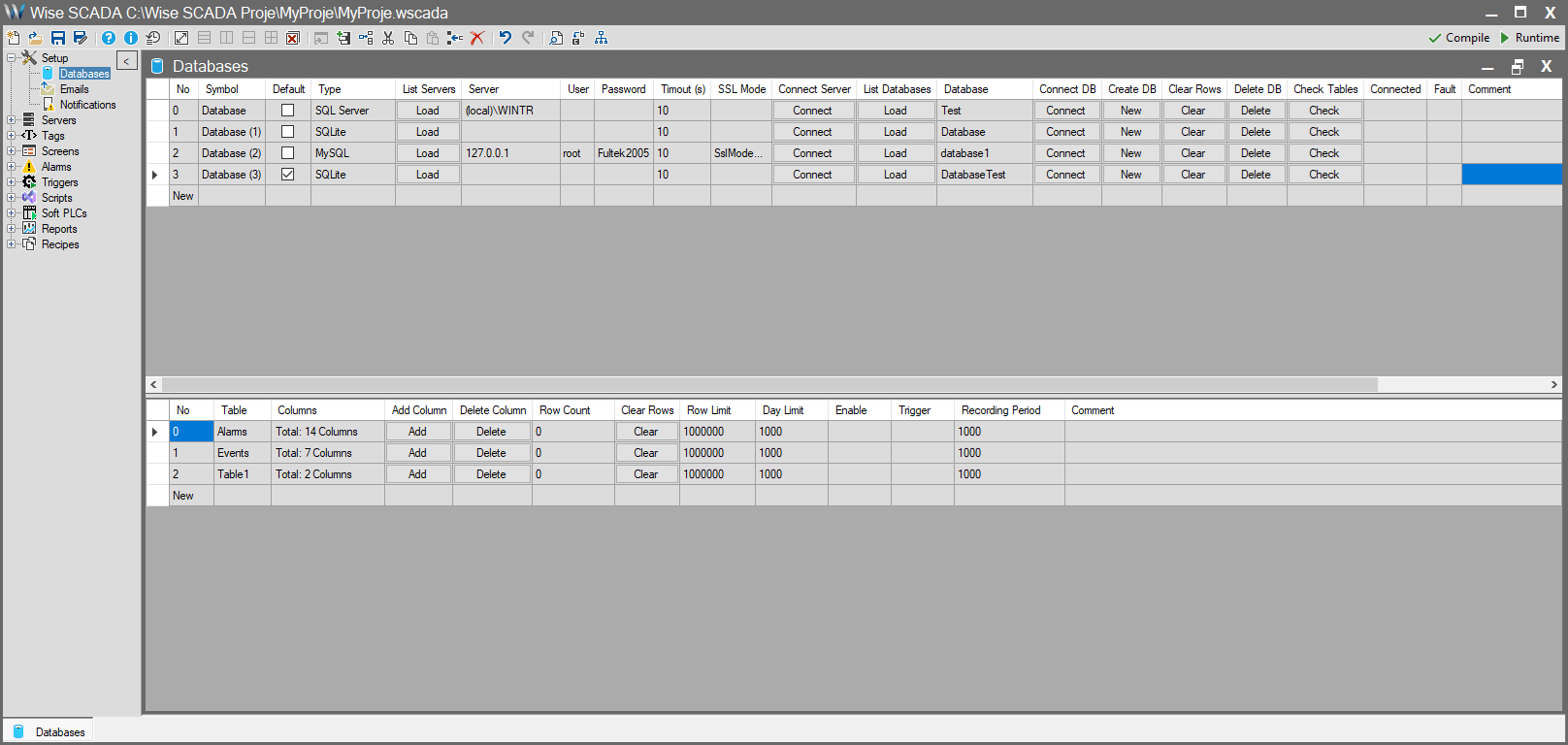
Database Types
Wise SCADA supports three main database types based on your project’s scale and needs:
- SQLite
A local, serverless database consisting of a single .db file. Requires no installation or management. Ideal for small projects or applications not requiring intensive database operations.
- SQL Server
Microsoft’s enterprise-level, high-performance database server. Recommended for projects requiring intensive database operations, large datasets, and high security.
- MySQL
Another popular, open-source, high-performance relational database server. Like SQL Server, it is recommended for intensive database operations.
1. Database Connections
This panel is where you define all the database servers that your project will connect to.
| Parameter | Description |
| No | The sequence number of the connection. |
| Symbol | The unique name you give to the connection (e.g., “Database (1)”). |
| Default | Determines whether this is the default database connection (Checkbox). At least one database in the project must be marked as “Default”. |
| Type | The field where you select the database type (SQL Server, SQLite, MySQL). |
| List Servers | Used to list the SQL servers currently available on your network. (Works only with the SQL Server type). |
| Server | The address of the server to connect to (e.g., (local)\WISESCADA, 127.0.0.1). |
| User | The database username (e.g., sa). |
| Password | The database password (e.g., WiseSCADA@2026). |
| Timeout (sec) | The timeout duration (in seconds) when attempting a connection. |
| SL Mode | Determines whether the connection to the server will be encrypted (Especially for databases like MySQL and PostgreSQL). If you are not on a secure network or are transmitting sensitive data, it is recommended to enable this mode (e.g., Required or Enabled) to prevent the connection from being monitored externally. (e.g., SslMode=Required;) |
| Connect Server / Connect | Performs a connection test to the database server using the entered Server address, User, and Password information. |
| List Databases | After a successful server connection, lists all databases found on that server. |
| Database | The dropdown list where you select which of the listed databases you want to use for this project. |
| Connect | Performs a connection test to the server with the defined settings. |
| Test | Indicates whether the connection was successful or not. |
| Create DB | Creates a new database on the server. |
| Clear Rows | Deletes all records (data) in all tables within the selected database. (Table structures are preserved, only the contents are emptied). |
| Delete DB | Completely deletes the selected database from the server. This operation cannot be undone. |
| Check Tables | Compares the table/column definitions in your SCADA project with the table/column structures of the physical database on the server and loads the tables into the lower panel. |
| Connected / Fault | Shows the instantaneous status of the connection. |
| Comment | Description note for the connection. |
2. Table Configuration
This panel lists the tables expected to exist within the database connection selected in the upper panel.
Wise SCADA is configured by default to work with 3 standard tables (Table1, AlarmTable, EventTable).
| Parameter | Description |
| No | The sequence number of the table. |
| Table | The name of the table in the database (e.g., Table1, AlarmTable). |
| Columns | The total number of columns found in the table. |
| Add Column | Manually adds a new column to the selected table. (This is generally for advanced users, as it is usually handled automatically by Runtime). |
| Delete Column | Deletes a column from the selected table. |
| Row Count | The instantaneous total number of records (rows) in the table. |
| Clear Rows | Deletes all data in the table. |
| Flow Limit / Day Limit | Used to limit data flow and the number of days data is retained. |
| Enable | Determines whether the recording process is active. Clicking it opens the Compare Dialog window where you can define a condition. Pressing OK opens the Conditions Dialog, where multiple Enable conditions can be added. If any of these conditions are valid, recording is enabled. Leave empty if you want recording to be always enabled. |
| Trigger | Determines the condition under which data recording is triggered. Clicking it opens the Compare Dialog window where you can define a condition. Pressing OK opens the Conditions Dialog, where multiple Trigger conditions can be added. If left empty, recording is performed periodically. |
| Recording Period | Determines how frequently (in milliseconds) data will be saved to the database. |
| Comment | Description note for the table. |