
Recipes
Recipes
The Recipes module is a powerful feature used to group, save, and restore parameters (set values) required for a specific process or product to the PLC with a single button click.
The usage of this module consists of two stages:
- Stage 1: Recipe Template Configuration
As a project developer, your goal here is to create a template to be used in Runtime. In these templates, you define the structure of the recipe (which tags it will include, min/max limits of these tags, etc.).
- Stage 2: Runtime Usage
The operator uses this template via the Recipe Object you placed on the Screens to create, save, and load different recipe records (e.g., “Product A”, “Product B”, “Night Shift Settings”) to the PLC.
This section explains Stage 1: how to create and configure recipe templates.
Recipe Management and Adding
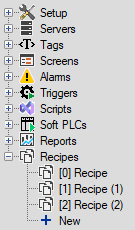
To define a new recipe template, use the New option under the Recipes main heading in the Project Tree on the left.
Each created template is automatically added to the list with a default name (e.g., Recipe, Recipe (1)).
You can give your template a meaningful name by changing this name in the Symbol column of the Recipes main window.
Note: The definitions made in this window are used via the Recipe Manager object on the Runtime screen.
Recipes Page
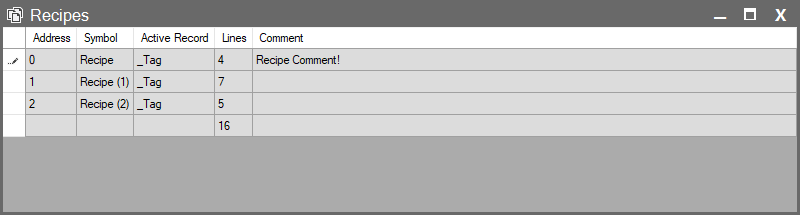
When the Recipes main heading is selected, a window opens listing all recipe templates created in your project. This window provides the following information for each template:
| Parameter | Description |
| Address | The sequence number automatically assigned to each row. |
| Symbol | The unique name you assign to better identify your recipe. The recipe name in the project tree is displayed here and can be changed from this column. |
| Active Record | The main tag where the trigger condition is controlled. |
| Lines | Shows how many tags each recipe contains. |
| Comment | Used to add descriptions or notes regarding the recipe. |
Status and Error Indicators
The Recipe module continuously checks the validity of defined tags, data type compatibility, and database connection. The system provides visual warnings in case of incorrect configuration.
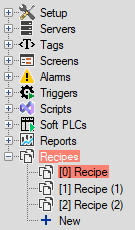
If a row in the Recipes heading in the Project Tree or in the Recipe Groups list on the right is highlighted in red, it means there is a general problem preventing that recipe group from working.
Common Causes:
• The tag that will write the parameter value to the PLC may have been deleted from the project or its name changed.
• There might be a mismatch between the Data Type of the selected tag and the defined Min/Max and Default Value in the recipe template definition window