
Triggers
Triggers
Triggers are rule sets that automatically activate when predefined conditions occur or when scheduled times are reached in the SCADA system.
With this feature, the system can perform certain operations (Script functions) autonomously without requiring operator intervention.
Example Use Cases
- Automatically start a fan when a specific temperature is reached.
- Reset a counter automatically when it exceeds a certain value.
- Generate a report every morning at 08:00 and send it by email.
Management and Creation
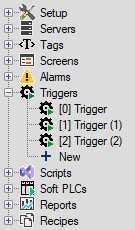
To create a new trigger group, use the New option under the Triggers main section in the Project Tree on the left side.
Each trigger group added to the list is automatically assigned a default name (e.g., Trigger, Trigger (1)).
If desired, you can change this name from the Symbol column in the main Triggers window to give the group a meaningful identifier.
Trigger Groups
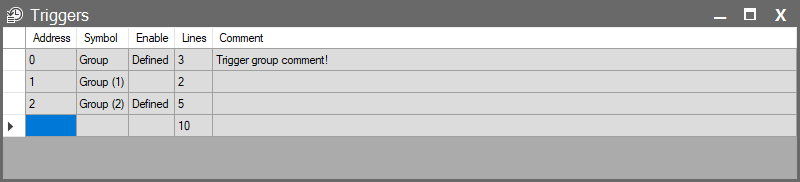
When you click the Triggers section in the Project Tree, a window opens where you can manage the general behavior of all created triggers groups.
| Parameter | Description |
| Address | Automatically assigned line number for each entry. |
| Symbol | A unique name you assign to better identify the trigger group. The group name shown in the Project Tree is displayed here and can be modified from this field. |
| Enable | Determines whether the group is active. When clicked, the Compare Dialog window opens, allowing you to define a condition. After pressing OK, the Conditions Dialog opens, where multiple Enable conditions may be added. If any of these conditions are true, the trigger group becomes active. Tip: If you want the group to always remain active, simply leave this field empty. |
| Lines | The total number of trigger lines created within the group. |
| Comment | Used to add notes or descriptions about the trigger. |
Status and Error Indicators
Red highlights and warning icons displayed in the Project Tree or within the Triggers list provide critical information about the compilation status of trigger groups, condition validity, or missing configurations. These indicators help you detect potential issues before moving the project to Runtime.

Warning Icons in the Triggers Window
In the main list, you may see a warning icon next to certain columns. This icon indicates an issue specifically related to that column’s configuration.
Warning in the Enable Column
• The condition defined to activate (Enable) the trigger group is no longer valid.
• For example, a Tag used in the condition may have been deleted or renamed.
Warning in the Lines Column
• Usually appears together with a red highlight.
• Indicates that one or more triggers lines inside the group contain errors.