
RecipeManager
RecipeManager
The RecipeManager is an advanced management module used to save and edit production parameters in sets (groups) and to send (Load) these values to PLCs/Devices in bulk.
Example: You may need to adjust 50 different settings (Speed, Temperature, Weight, etc.) for “Product A” on a packaging machine. With RecipeManager, you can save these 50 settings under the name “Product A” once and load them into the machine with a single click when needed.
For standard Properties, Advanced, and Events Panel settings not covered here, please refer to the Common Object Features page.
Basic Operating Principle
The Recipe Manager acts as a bridge between the database and PLC tags.
- DB -> PLC (Load): Retrieves the recipe values saved in the database and writes them to the relevant tags.
- PLC -> DB (Save): Reads the current live values from the tags and saves them to the database as a new recipe or an update.
Properties Panel – Key Properties
This panel controls the general state of the table.
- Visible: You can bind the visibility of the recipe screen to a tag.
Advanced Panel Settings
This panel determines the security of the recipe table and which recipe group it manages.
- FixedGroup (Important)
- Which “Recipe Group” defined in your project (e.g., Furnace_Recipes) will this table manage? Enter the name of that group here.
- Note: If left empty, the operator can switch between all available recipe groups.
- Security Levels (…PasswordLevel)
- Determines the authorization levels required for the operator to perform sensitive operations.
- LoadPasswordLevel: Authority required to load the recipe to the PLC.
- SaveAsPasswordLevel: Authority required to create a new recipe (Save As).
- SavePasswordLevel: Authority required to update an existing recipe.
- DeletePasswordLevel: Authority required to delete a recipe.
- ExportPasswordLevel: Authority required to export recipes to Excel/PDF.
Child Controls & Sub-Panels (Visual Customization)
Like AlarmView, RecipeManager is a composite structure. You can customize the buttons and pop-up windows (Save As Panel, Delete Panel) inside it individually.
Customization Example
To strictly prevent operators from deleting recipes.
- Find the _DeleteButton row in the Child Controls list.
- Click the “Properties” text next to it.
- In the window that opens, set the Visible property to False.
Runtime Usage
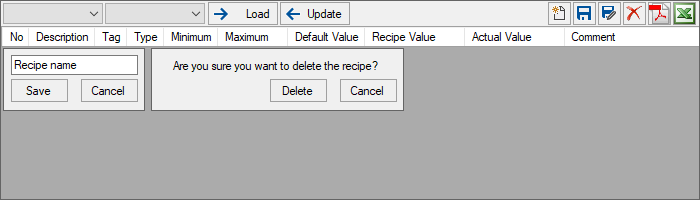
On the Runtime screen, operators manage recipes via the toolbar and the table.
Toolbar Functions
- Group and Recipe Selection (Top Left)
- The first box selects the recipe group, and the second box selects the saved recipes within that group (e.g., “Product_A”, “Product_B”).
- Load:
- Sends the values in the selected recipe to the corresponding tags in the PLC. (Database -> Device).
- Update (Read)
- Reads the current live values from the PLC and displays them in the table on the screen (Device -> Screen).
- Warning: This operation does not immediately save to the database; it only updates the display.
- New
- Opens the “Save As” panel to create a new recipe.
- Save
- Overwrites (updates) the selected recipe with the values currently shown in the table.
- Edit
- Used to rename the recipe.
- Delete
- Deletes the selected recipe from the database.
- PDF / Excel
- Exports the recipe content as a report.
Table Columns and Meanings
This table is critical for the operator to compare values:
- Description
- The name of the parameter (e.g., “Furnace Temperature”).
- Tag
- The connected PLC tag.
- Default Value
- The parameter’s default factory value.
- Recipe Value
- The value saved in the database. This is the value that will be sent to the device when the “Load” button is pressed.
- Actual Value
- The live value currently active in the PLC/Device.
Usage Tip: By comparing the Recipe Value with the Actual Value, the operator can verify whether the machine is running according to the recipe.