Network Configuration for PLC Communication
Network Configuration for PLC Communication
For Wise SCADA to exchange data reliably with your PLC devices, both your computer and the PLC must be defined on the same local network (subnet).
The following steps include the basic configurations that must be completed prior to installation to prevent communication errors:
Connection via Router or Switch
If you are using a router or switch for the Ethernet connection, the first three bytes of the IP address must be compatible with the router or switch gateway address.
Example: If the Router gateway is 192.168.0.1, the PLC IP address should be in the format 192.168.0.XXX.
Connection Without a Switch (Direct Connection)
In a direct connection, your computer will automatically assign itself a random IP address. In this state, you will not be able to connect to the PLC.
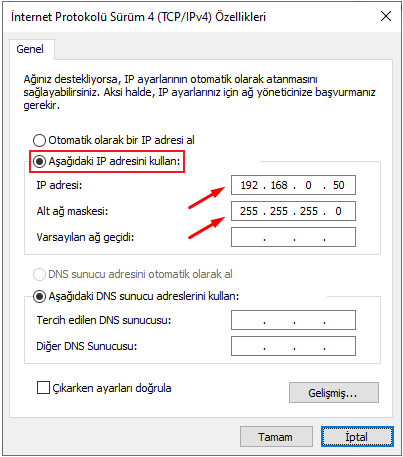
To establish a connection, you must configure your computer’s network settings to match the CPU.
By default, CPUs are shipped with the IP address 192.168.0.10. Therefore, you must adjust your computer’s IP accordingly.
How to Change Computer TCP/IP Settings
- Select Start, then go to Setting > Network & Internet.
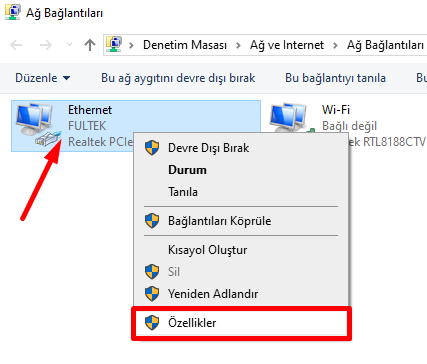
- Select Ethernet, then choose Change adapter options for the Ethernet network you are connected to.
- Right-click on the active network and select Properties.
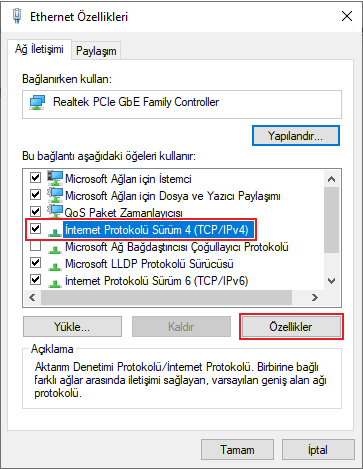
- Select Internet Protocol Version 4 (TCP/IPv4) and click Properties.
- Enter the IP address and Subnet mask values, then click OK to save your settings.