Softkey Activation
Softkey Activation
If you have purchased a Softkey license, you will be provided with a serial number (License Key). Follow the steps below to activate the license.
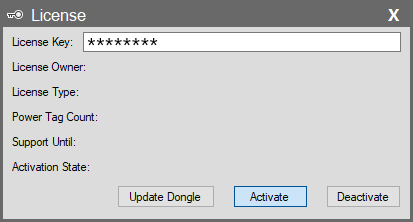
- Enter Key: In the license window, enter or paste your provided license key into the License Key field.
- Activate: After entering the key, click the Activate button located at the bottom of the window.
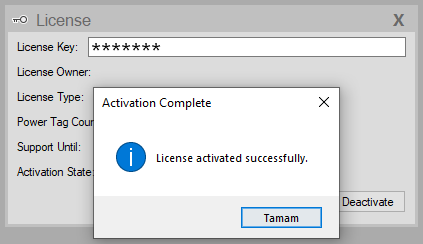
- Confirmation: Upon successful activation, a “License activated successfully” message will appear on the screen.
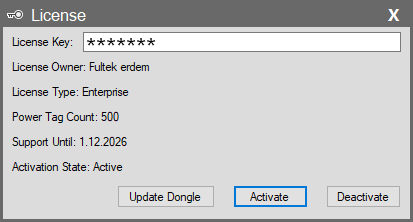
Post-Activation: Once the license is active, information such as the license owner, license type (Lite/Pro/Enterprise), and support duration will automatically populate.
License Deactivation and Transfer
Applicable only to Softkey licenses. If you need to transfer your license to another computer or format your current computer, you must first deactivate the existing license.
- Open the license window.
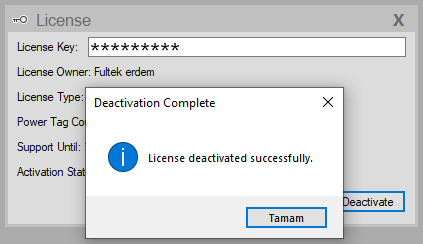
- Click the Deactivate button.
- Confirm the “License deactivated successfully” message.
After this process, your license key will be released and can be reused on another computer.
Important Prerequisite: Administrator Privileges
- During the licensing process, the soft-key license can be entered by any Windows user, regardless of their permission level. However, the deactivation process requires Administrator privileges.
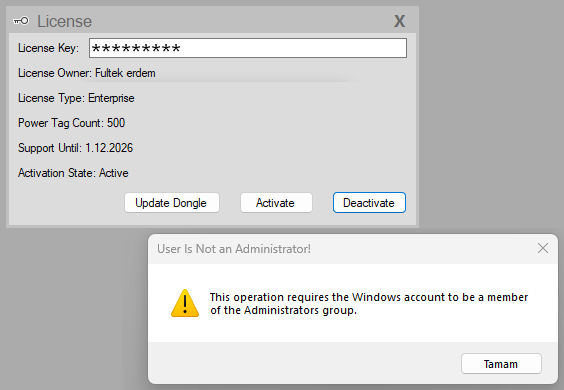
- If the SCADA project is started by a standard (non-administrator) Windows user, pressing the Deactivate button will display a warning message the one shown in the image:
“This operation requires the Windows account to be a member of the Administrators group.”
- When you click OK, the system attempts to restart the SCADA application with Run as Administrator permission.
- If you confirm the prompt and allow the application to run with elevated privileges, the SCADA software will reopen with administrator rights, and you will be able to complete the license deactivation successfully.