
Chat
Chat (Telegram Chat Window)
The Chat object is a communication tool that enables operators to send and receive messages on the Runtime screen via a Telegram Bot defined within your SCADA project’s Notification infrastructure.
Thanks to this object, operators at the SCADA terminal can correspond directly with technical personnel in the field or office via the Telegram application on their mobile phones.
Prerequisite: For this object to function, an active Telegram Bot must be defined in the background of your project (in the Notification module). The Chat object utilizes this bot as its interface.
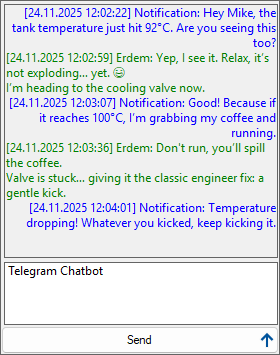
For standard Properties, Advanced, and Events Panel settings not covered here, please refer to the Common Object Features page.
Properties Panel – Key Properties
This panel controls the general state of the object.
- Visible
- You can bind the visibility of the chat window to a tag or user level.
Advanced Panel – Key Properties
Which bot the Chat object uses, who it communicates with, and its visual appearance are configured in this panel.
Settings (General Settings)
- Notification
- You must select the Notification object/setting defined in your project here. This determines through which Telegram Bot the messages will be routed.
- ChatId (Target ID)
- Determines the recipient of the messages sent from this window on Telegram.
- Personal: If you enter a specific user’s Telegram ID, messages are sent only to them.
- Group Chat: If you enter a Telegram Group ID, messages are sent to that group and are visible to all members.
- IncomingMessageColor
- The background color of messages received from outside (from Telegram). (Default: Green).
- OutgoingMessageColor
- The background color of messages written by the operator (Outgoing). (Default: Blue).
- ShowTimestamp
- Determines whether the timestamp is displayed below the messages.
- EnableSendShortcut
- True: The operator can send the message by pressing the Enter key.
- False: The operator must click the Send button.
- AutoScroll
- Ensures the chat window automatically scrolls to the bottom when a new message arrives.
Actions
- StartStopListener
- Starts or stops the message listening service (Polling). This service must be running for the chat to be active when Runtime starts.
- ClearHistory
- Clears the message history currently displayed in the chat window.
- Child Controls (Visual Customization)
- Used to customize the buttons and text boxes contained within the object.
- Example: You can access the properties of _SendButton and change the Text property to “Send” (or translate it to your local language) to customize the interface.
Runtime Usage
On the Runtime screen, this object functions like a standard messaging application:
- Sending Messages: The operator types their message in the text box at the bottom and presses the Send button.
- Transmission: The message is instantly transmitted to the person or group specified in the ChatId field via the defined Telegram Bot.
- Receiving Messages: When the external party (Telegram user) replies, their response appears in the chat window on the SCADA screen (displayed in the defined IncomingMessageColor).