Web Interface
Web Interface
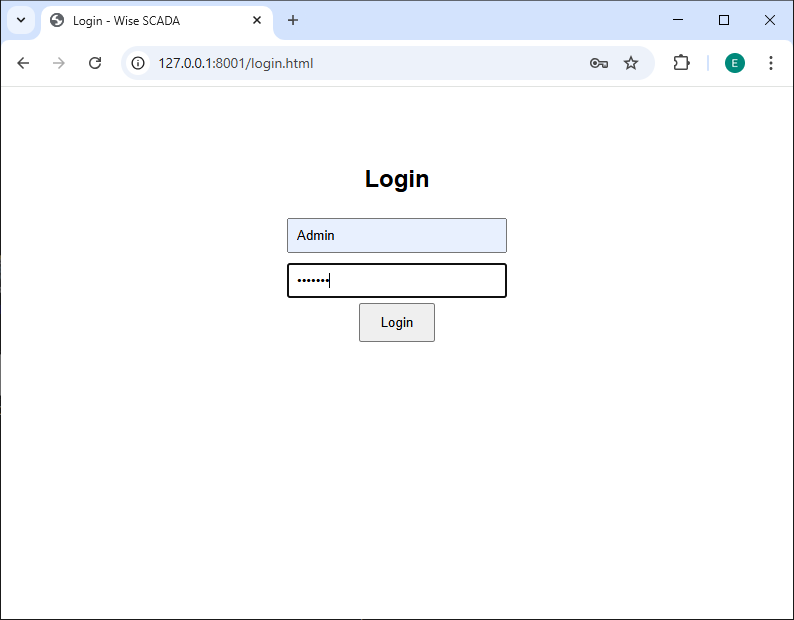
User Login
If the “Login Required” option is checked, you will first encounter this screen when attempting to log in.
Home Page and Navigation
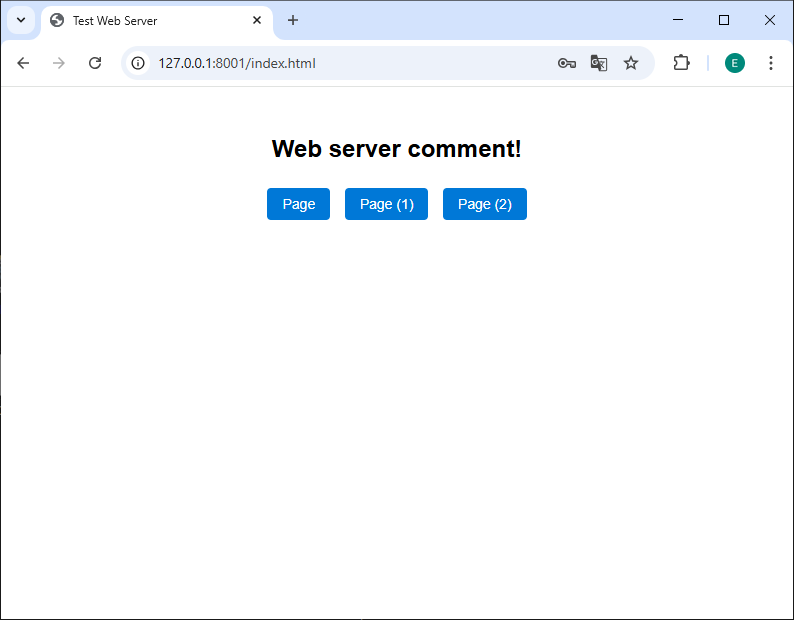
If you have activated the “Use Home Page” option in the settings, the user will encounter a menu like the one below when they type the IP address into the browser (e.g., http://127.0.0.1:8001):
- Title: The text “Web server comment!” seen in the image comes from the Comment column in the server settings. You can write explanatory text here, such as “Factory Monitoring System”.
- Buttons: The blue “Page“, “Page (1)” buttons are automatically generated to navigate to the screens you defined in the Pages table.
SCADA Screen Viewing
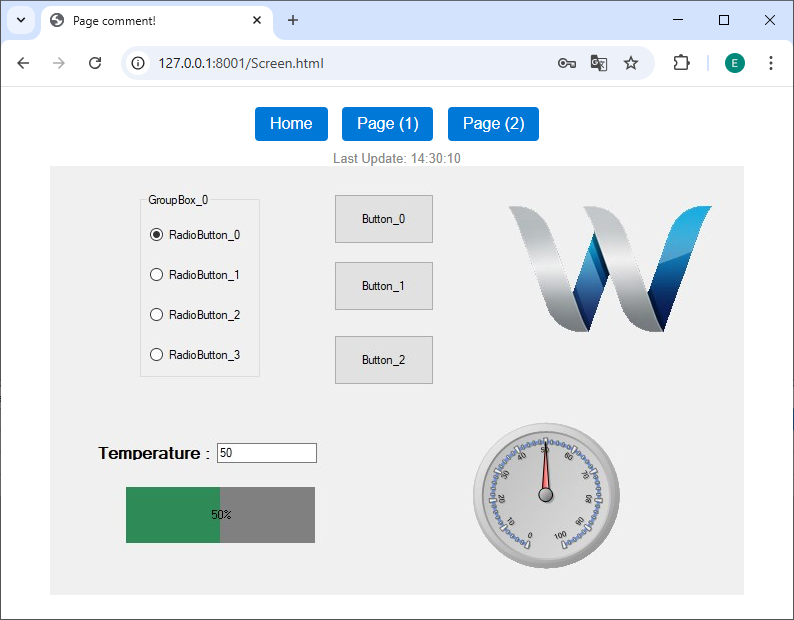
When a user accesses a page, your SCADA design is displayed exactly as designed in the web browser. Flexible options are provided for navigating between pages:
- Automatic Navigation Buttons: The “Home” and “Page (1)” buttons seen at the top of the screen are added automatically based on the Navigation Button setting (Home Page, Each Page, or Both). This feature allows for navigation between pages without the need to place additional buttons on the screen.
- Navigation via Custom Screen Buttons: In addition to the automatic navigation buttons, users can also use the custom page navigation buttons you have directly added to your SCADA design. Therefore, if you prefer, you can completely disable the automatic navigation buttons and handle page transitions normally by using only your custom-designed buttons.
Interaction and Confirmation Windows
Security and user experience in web browsers differ from the desktop environment. Wise SCADA uses special dialog windows to prevent accidental operations.
Operation Confirmation
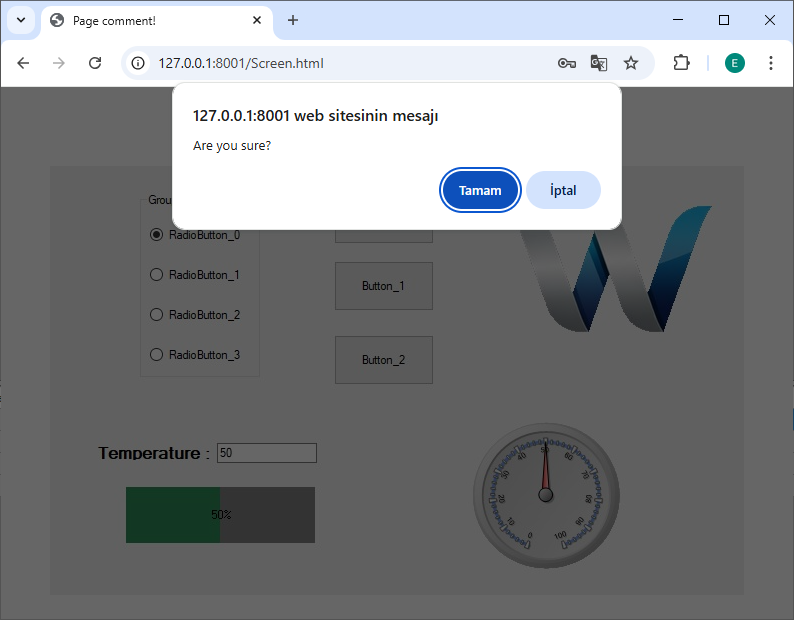
If the “Ask Confirmation” option is active in the server settings, the browser opens a confirmation window when a button is pressed or an attempt is made to change a value:
- Customization: The “Are you sure?” message in the window is the default text.
- Your Own Message: If you write text in the Comment property of the relevant object (Button, Switch, etc.) in the Screen Designer (e.g., “Do you want to stop the motor?”), that message will be displayed in the confirmation window.
Data Entry (TextBox & NumericUpDown)
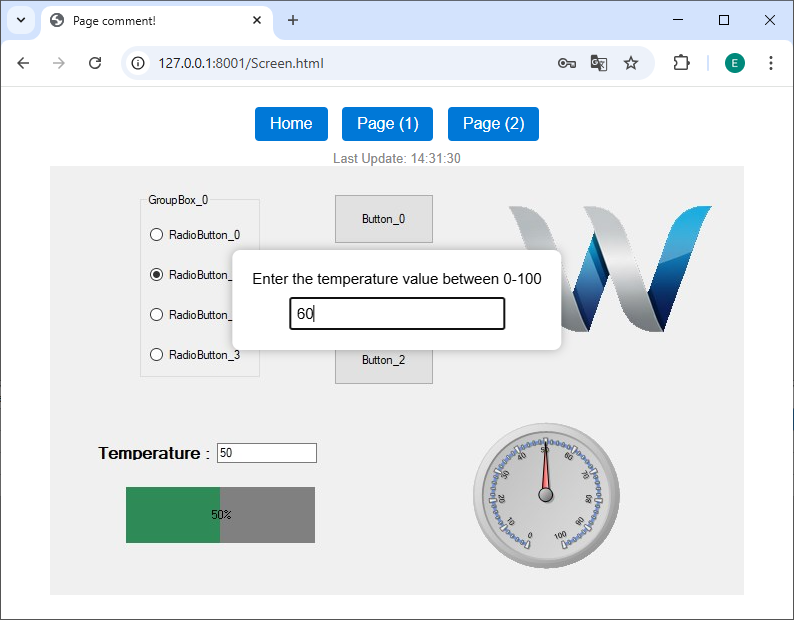
A similar pop-up opens when you click on a TextBox or numeric field via the web.
- Title: By default, the name of the object (e.g., TextBox_0) is displayed.
- Guidance: If you write a note such as “Enter the temperature value between (0-100)” in the Comment field of the object, this note appears in the title of the pop-up window. This feature is very useful for guiding the operator to enter the correct value.