
OPC DA Client
OPC DA Client
OPC DA is a long-standing industrial automation standard based on Windows COM/DCOM architecture. Thanks to its OPC DA support, Wise SCADA can access almost all PLCs and devices on the market, regardless of whether they are legacy or modern systems.
Connection Settings
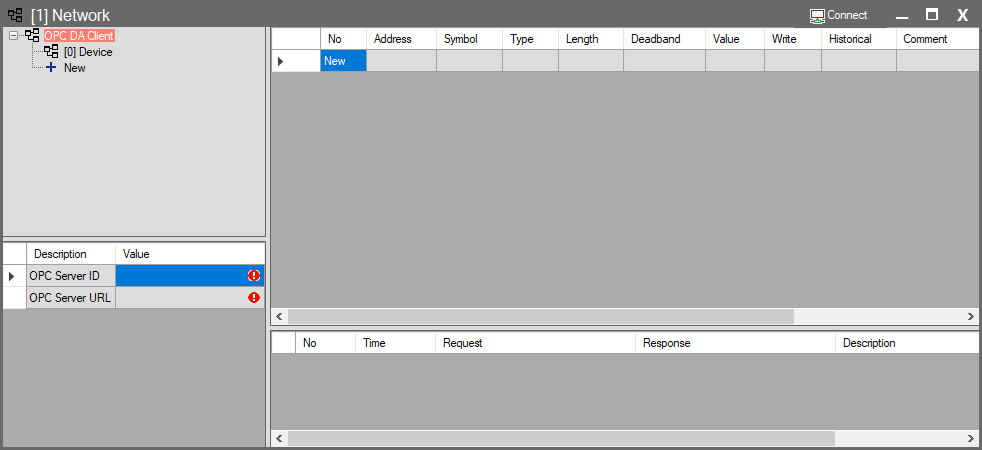
When you add an OPC DA Client to your Wise SCADA project, the connection process follows these steps:
- Warning Area: Upon initial addition, red warning boxes appear on the screen indicating that the connection has not yet been established.
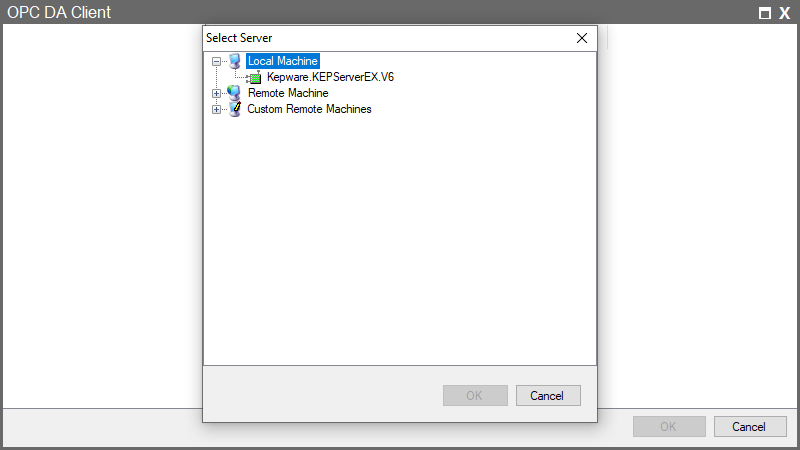
- Server Selection: Clicking this red area opens a window listing the OPC Servers installed on your computer (e.g., Kepware, Matrikon, etc.).
- Tag Selection: Once you select and connect to the relevant server from the list, you can select the tags within that server and import them into the Wise SCADA interface.
Network Interface and Parameters
This list is the main hub where data retrieved from the field is managed.
| Parameter | Description |
| No | The sequence number of the tag in the list. |
| Address | The address path of the data on the OPC server side. In OPC DA, this usually appears in Channel.Device.Tag format. |
| Symbol | The short name assigned to this tag within Wise SCADA. This name is used during design. |
| Type | Specifies the data type. |
| Length | The size/length of the data. |
| Value | The instantaneous value read from the device. |
| Write | The field used to send values from SCADA to the device. Values entered here are written directly to the PLC/Device. |
| Historical | When this box is checked, incoming data is saved to the database for historical reporting. |
Connection Status and Logs
The panel at the bottom of the screen provides information regarding the connection health:
- Request: Displays the name of the server Wise SCADA is connected to (e.g., Kepware.KEPServerEX.V6).
- Response / Description: Reports the success status of the connection. Messages such as “Connected” and “Tag read successfully” indicate that the system is operating correctly and data is being updated.