
Password Recovery Settings
Password Recovery Settings
To prevent the project from being locked out in case of a forgotten login password, you can allow authorized users to reset their passwords via email.
Configuration Steps
The Recovery Email section at the top of the Setup window is designed for this function.
- Allow our to provide the password to aynone who requests it: When checked, this enables the authority to share the password with anyone requesting it, regardless of the system-defined recovery emails. This setting is critical for security and should be used with caution.
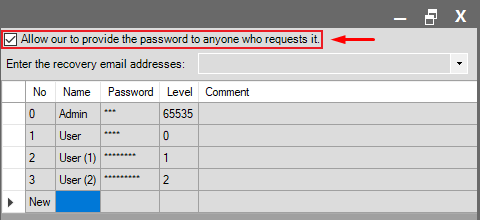
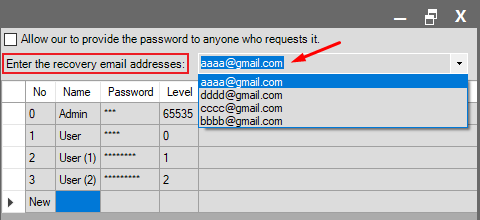
- Enter the recovery email addresses: Define the secure recipient addresses that can receive the password reset email here. Passwords can only be sent to emails in this list. Once an email is defined, the “Forgot Password?” button becomes active on the login screen.
Forgot Password Process
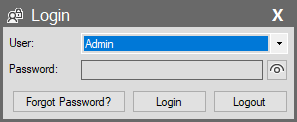
The “Forgot Password?” button appears on the login screen at project startup at development.
How It Works?
- Select the user who forgot their password from the “User” box. (Note: Only users with the highest authority level and their peers are visible in this list).
- Clicking the “Forgot Password?” button opens the email sending window.
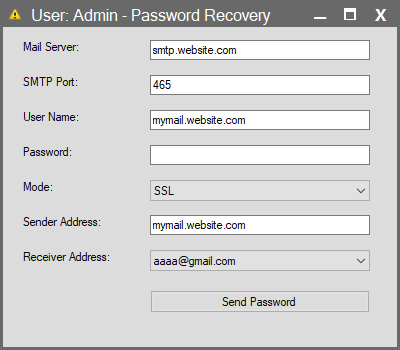
- Mail Settings:
- If a mail server (SMTP) has been previously defined in the project’s Emails section, the system automatically uses the first setting.
- If no mail is defined, the user must enter valid mail server settings (Host, Port, SSL, etc.) manually.
- The password reset information can only be sent to one of the addresses in the Recovery Email list defined in the Setup section. If no email is defined there, the “Forgot Password?” button will not appear.
Warning for Gmail Users
If you are using Gmail to send emails, Google security policies prevent you from using your standard login password. You must create “App Passwords” in your Google account and use that password in SCADA. (See: App Password)