
Historical Tags
Historical Tags
Historical Tags serve as the “memory” of your SCADA system. This feature allows you to continuously record the instantaneous values of specified tags (both Internal and External) to a database along with a timestamp.
The main purposes of this process are:
- To analyze historical process values.
- To create Trend charts for monitoring system behavior.
- To provide a data source that can be processed with SQL queries for the Reports module.
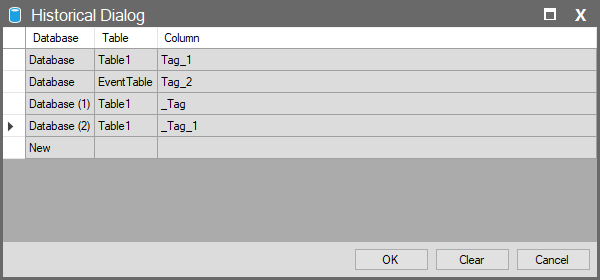
The “Historical Dialog” window is used to enable historical logging for a tag; here, you determine where and how the data will be saved.
Historical Dialog Window
This window defines which database and which table/column within that database a tag’s value will be saved to.
Configuration Steps
- Click the New row to add a new recording destination (database) to the list.
- Database: Select the target database connection (e.g., Database (1)) from the dropdown list. This destination must be previously configured in the Database section.
- Table: Specify which table within the selected database the data will be written to (e.g., Table1).
- Column: Enter the column name under which the values for this tag will be stored in the relevant table (e.g., _Tag_1).
- OK: Click the OK button to save settings and close the window.
Advanced Usage: Recording to Multiple Destinations
Wise SCADA allows you to save a tag’s value to multiple destinations simultaneously.
By adding multiple rows to the Historical Dialog window, you can record a single tag’s value to multiple locations (e.g., different databases or different tables within the same database).
Use Case: This is useful for scenarios such as recording to both a local database (for fast access) and a central SQL server (for corporate analysis) at the same time.
Clearing Settings
If you wish to remove the historical recording settings defined for a tag, you can do the following in the Historical Dialog window:
- Select the relevant row(s) and press the Delete key on your keyboard.
- Or use the Clear button to delete all definitions at once.