
OPC UA Client
OPC UA Client
OPC UA (Open Platform Communications Unified Architecture) is a platform-independent, secure, and modern communication protocol developed for industrial automation data exchange.
Unlike the legacy OPC DA (Data Access) protocol, OPC UA is not limited to Windows-based systems; it operates seamlessly on various operating systems such as Linux, macOS, and Android, as well as on embedded devices (PLCs, sensors).
Pro Tip: Wise Scada natively supports many protocols such as Modbus, Siemens (Profinet), and Mitsubishi. If your device supports these protocols, it is recommended to use Wise Scada’s native drivers first for better performance and lower CPU usage. Since OPC acts as an additional layer, it is generally slower than native drivers.
Connection Settings
When the “OPC UA Client” is added to the project tree, click on the area marked with a red exclamation mark in the Settings row to open the OPC UA Dialog window. All configurations are performed through this window.
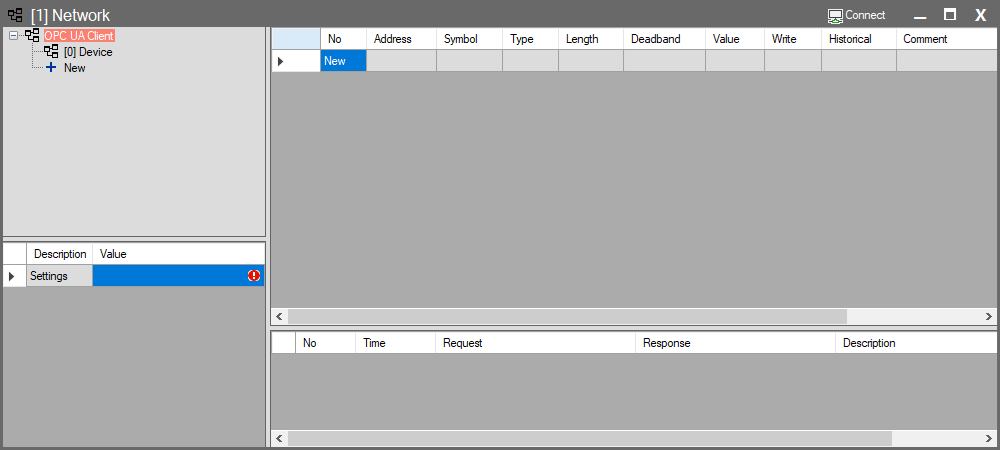
OPC UA Dialog Window
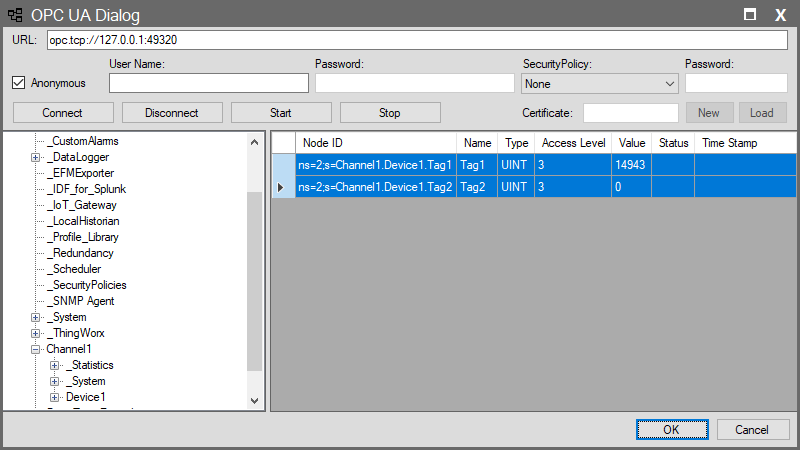
Parameters
| Parameter | Description |
| URL | The address of the OPC server to connect to. Usually in the format opc.tcp://IP_Address:Port (e.g., opc.tcp://127.0.0.1:49320). |
| Connect | Establishes the connection with the server. Once connected, the server’s Node structure is listed in the blank area on the right. |
| Disconnect | Terminates the connection with the server. |
| Start | After connecting via “Connect,” this starts a live monitor of the listed tags’ instantaneous values, Status, and Time Stamps within this window. It is used to verify that data is arriving correctly from the server before adding tags to the SCADA database. |
| Stop | Stops the live data monitoring process. This halts the network traffic for data updates but does not disconnect the “Connect” session with the server. |
Authentication & Security
Depending on your OPC UA server’s security configuration, select the appropriate connection method:
| Parameter | Description |
| Anonymous | Used if there are no security restrictions on the server. Usage: Check this box. Username and Password fields will be disabled; click “Connect” directly. |
| User Name & Password | Used if a user account is required to connect to the server. Usage: Uncheck “Anonymous.” Enter the defined username and password in the enabled fields. |
| Security Policy | An advanced security mode where data is sent using encryption (Sign & Encrypt). Usage: Select the encryption standard supported by the server from the dropdown list (e.g., Basic256Sha256). |
| Certificate | Wise Scada requires a digital identity (certificate) for encrypted communication. New: Creates a new certificate (requires a password). Certificates are stored in the Files directory within your project folder. Load: Loads an existing certificate from your computer. |
Adding Tags
Once the connection is successfully established (Connect), the server’s data tree is displayed in the right panel:
- Browse the tree structure to find the folders or tags you wish to add.
- Select the desired tags (you can use the Ctrl key for multiple selections).
- Click the OK button. The selected tags will be automatically added to the Wise Scada Network page with their correct data types.
Monitoring and Control
After the tags are added:
- Value: Instantaneous values update automatically.
- Write: You can write data to the OPC server by entering a value in this column.
- To add new tags, you must reopen the Settings window, click Connect, and make your selection again.
Tag Parameters
The columns in the main table, where tags imported from the OPC server are listed, are defined as follows:
| Parameter | Description |
| No | The sequence number of the tag in the list. (For informational purposes only). |
| Address | Indicates the full path (Node ID) of the data on the OPC server side. |
| Symbol | The unique name of the tag within the project. |
| Type | The data type of the tag (e.g., BOOL, INT, REAL, STRING). Determines how the tag is stored in memory. |
| Length | The size the tag occupies in memory (in Bytes). |
| Deadband | The minimum difference (tolerance) required for a value to be considered “changed.” This prevents unnecessary processing of minor signal noise. |
| Value | The current real-time value of the tag. |
| Write | The field used to write data (Set operation) to the OPC server from SCADA. |
| Historical | Manages historical data logging settings. Clicking this cell opens the logging configuration window. For more information, visit the Historical Tags page. |
| Comment | A descriptive note about the tag entered by the user. |