
User Definition
User Definition
The Setup section is the central hub where general project settings are configured and, most importantly, the Security Access layer is managed.
Wise SCADA comes in a “Developer Friendly” mode by default and does not ask for a password at startup. However, the behavior changes once the user definition mechanism is activated to ensure security.
Default State (No User/Password)
If no user is defined in the Setup list, or if existing users have no passwords defined, the project opens directly when you start Development. There are no restrictions.
Secure State (User Defined)
As soon as you add at least one user and a password (e.g., Admin) to the Setup list, the project automatically switches to “Security Mode”.
- Result: Now, every time you launch the project (Development), a mandatory Login Screen appears.
- Access to the system or authorization-required operations cannot be performed without entering the correct Username and Password.

Note:
- Note: When you create a new project, the Admin user is automatically created with the highest authority level, but no password is defined. If you do not set a password, Development will open without prompting for one.
- Only users with the highest authority and those at the same level appear in the Login window.
Adding a New User
To add authorized users to the project:
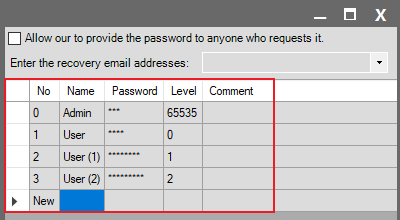
- Click on the Setup heading in the project tree on the left.
- In the window that opens, create a new user by clicking the New row in the right-hand menu.
- Edit the following information for the created user:
- User Name
- Password
- Level: The user’s authority degree (between 0 – 65535).
Authority Level (User Level)
The Level value you define matches the System.UserLevel tag in the project. The PasswordLevel settings found in the properties of objects (Buttons, Screens, Recipes, etc.) are compared against this value.
- Example: If you set a condition like UserLevel > 500 for the Visible property of a “Settings” button; the button will be hidden when an “Operator” (Level: 100) logs in, but visible when an “Admin” (Level: 1000) logs in.
User Management at Runtime
- The Setup page is intended only for creating the project’s initial (root) users. It is recommended to add a UserManager object to the screen to allow operators to change their own passwords or add new sub-users while Runtime is running. (See: UserManager Guide)
- To perform user creation and deletion operations in the UserManager object, the “User Management at Runtime” option on the Setup page must be selected.