
Tag Binding
Tag Binding
Tag Binding is a structure that allows you to establish dynamic connections between a screen (or object) and tag variables within the SCADA system.
Thanks to this feature, a single page becomes reusable for multiple devices or stations. In short, it allows you to create a Template Screen. Instead of duplicating the same page design dozens of times for identical devices (e.g., Motor 1, Motor 2, Motor 3), you design it once. When the page is called, you determine via parameters which real tags will be connected to the interface.
Basic Working Logic
1. Creating a Template Screen
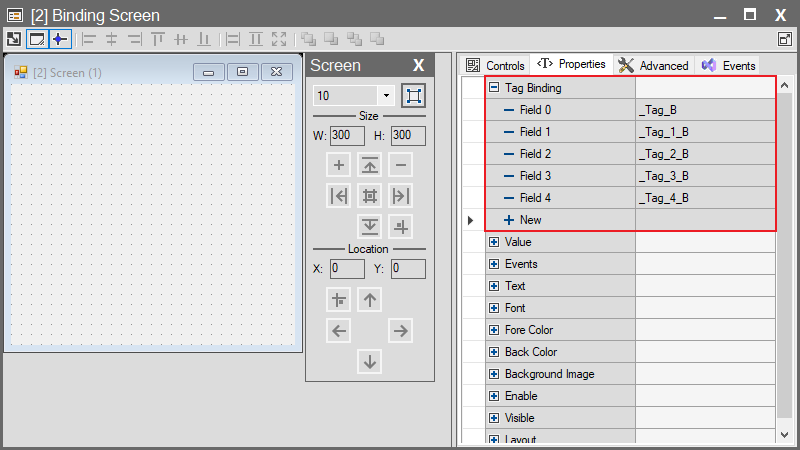
First, you define the dynamic fields on the screen you want to use as a template.
- Go to the Properties panel of the Screen itself.
- In the Tag Binding area, create “Field” names.
- Each “Field” acts as a placeholder for the real tag that will be assigned later.
- Note: The tags to be assigned to Fields must be defined as Internal Tags in the project.
2. Calling the Screen and Assigning Parameters
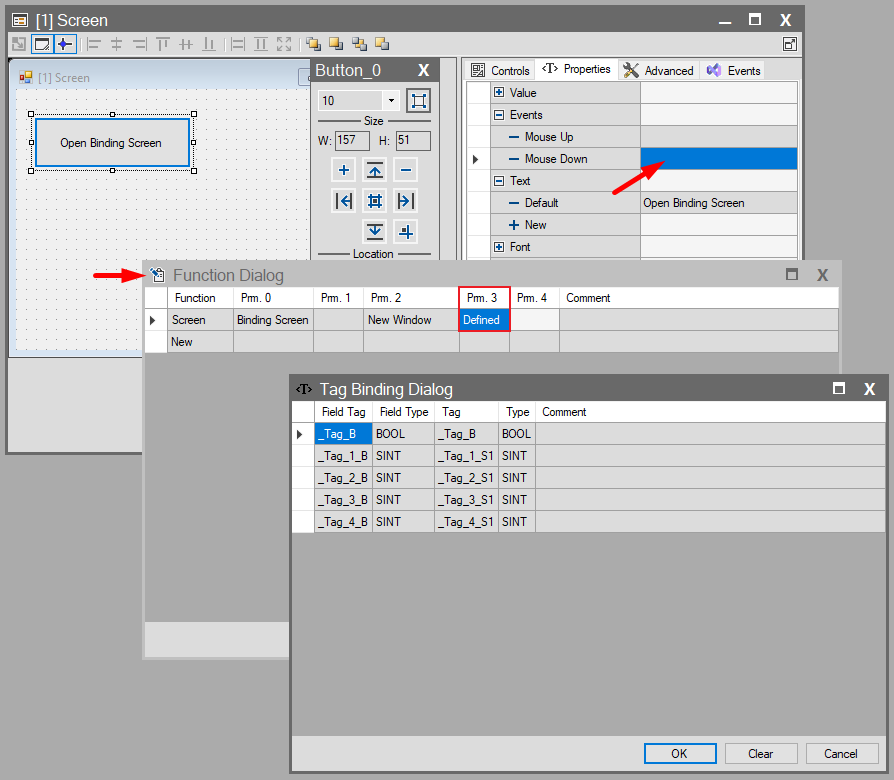
You configure the assignment when creating the action to open the screen (e.g., pressing a button).
- Click on the Properties > Events > Mouse Down section of the button.
- The Function Dialog window opens. Select the “Screen” function.
| Parameter | Description |
| Prm. 0 | Screen Name: Select the template screen to open (e.g., Binding_Screen). |
| Prm. 2 | Open Mode: Select how the screen will open (e.g., New Window). |
| Prm. 3 | Binding Configuration: When you click this cell, the Tag Binding Dialog window opens. This is where the magic happens. |
3. Tag Binding Dialog
This dialog window lists all the “Field Tag” placeholders you defined inside the template screen.
- In this window, you map each Field to its corresponding Real Tag (e.g., Map the Motor_Speed_Field to the real PLC_Motor_1_Speed tag).
Screen Runtime Dynamics
When the page is opened during Runtime:
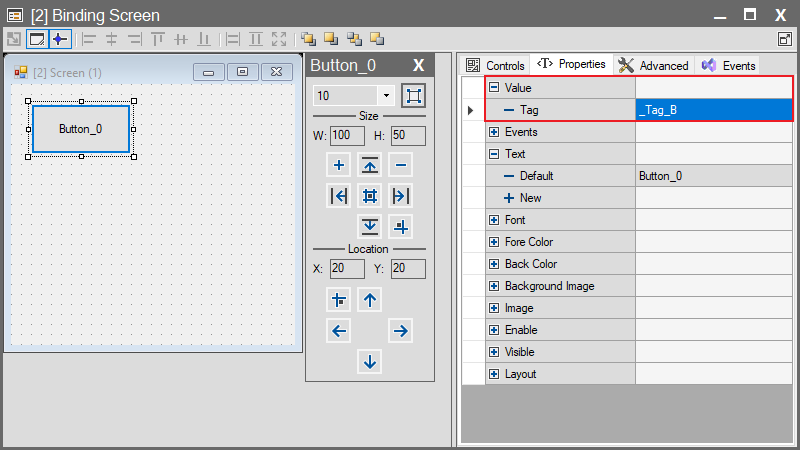
- The objects inside the screen read data from or write data to the real tags assigned to them via the binding.
- To use the same design for 10 different situations (e.g., 10 different motors), you simply need to create 10 different buttons and change the Tag Binding parameters (Prm. 3) for each.
Important Considerations
- Unique Names: Each “Field” name within a screen must be unique.
- Data Type Match: The data type (SINT, INT, BOOL, etc.) of the Field tag must match the data type of the Real Tag being bound.
- Maintenance: If you change the names of Field tags in the template screen, you must also update the connections in the Tag Binding Dialog for every button or event that calls that screen.