
EventView
EventView (Event Viewer)
The EventView is an advanced table that maintains and lists a chronological record of all actions, user interventions, and system changes occurring in your SCADA system.
While the AlarmView object displays “faults,” the EventView displays “actions.” It answers the question: “Who changed which value, on which screen, and when?”
Basic Operating Principle and Database
Adding the EventView object to the screen is not sufficient for it to display data; the system must be configured to record logs in the background. The following two conditions must be met:
- Enabling Recording (Setup):
- Go to the Setup page in the Project Tree.
- Check the Event Recording box.
- Note: If this feature is disabled, no data will be recorded even if a database is connected, and the table will appear empty.
- Database Connection:
- A valid database (SQL Server, MySQL, etc.) must be defined in the Databases section of your project.
- When the EventView object is selected, this database must be chosen from the Advanced panel.
Properties Panel – Key Properties
This panel controls only the general state of the object. Content management is not performed here.
- Visible: You can control the visibility of the table by binding it to a condition.
- Enable: Used to set the table to a passive (non-clickable) state.
Advanced Panel – Key Properties
Settings (General Settings)
Basic settings determining how the table retrieves data:
- Database (CRITICAL)
- The database connection from which event logs will be read.
- MaxRows
- The maximum number of rows to fetch from the database at one time to protect performance (Default: 100). Setting this too high may increase query time as the number of events grows.
- ResetTime
- The duration (in seconds) the screen waits after operator interaction (filtering or browsing history) before automatically reverting to “Real-Time” (Live Stream) mode if no further action is taken.
Child Controls & Filter Panel Controls (Visual Customization)
The EventView is a composite structure containing search boxes, date pickers, and export buttons. Through these lists, you can access and customize every individual part inside the object.
- How to Use: Example: Preventing the operator from exporting to Excel.
- Find the _ExcelButton row in the Child Controls list.
- Click the “Properties” text next to it.
- In the window that opens, set the Visible property to False.
- Capabilities:
- Translate table column headers (_ResultGridColumns) (e.g., change “User” to “Operator”).
- Change button text or icons.
- Hide elements in the search panel (FilterPanel).
Runtime Usage and Columns
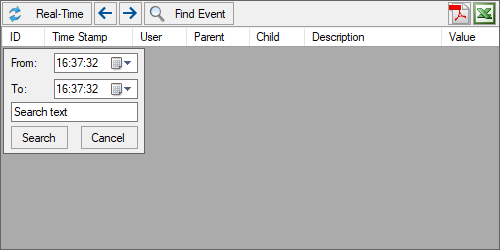
On the Runtime screen, the table presents the following information:
Standard Columns
- ID
- The sequence number of the event in the database.
- Time Stamp
- The date and time the event occurred.
- User
- The user who performed the event (e.g., “Admin,” “Operator1,” or “System”). This feature is critical in secure facilities to prove “who did what.”
- Parent
- The name of the main screen or module where the event occurred.
- Child
- The name of the specific object where the event occurred (e.g., “Start_Button”).
- Description
- A description of the event (e.g., “Button Click,” “Value Change”).
- Value
- If a change was made, the new value (e.g., if a Set value changed from 50 to 100, it appears here).
Toolbar Functions
- Real-Time
- Clears filters and refreshes the list to show the most recent events at the top (Live Stream).
- Pagination
- Allows navigation through pages of historical events.
- Find Event (Filtering)
- Opens the detailed search panel.
- From / To: Used to query what happened within a specific date/time range.
- Search Text: Used to search for a specific user (e.g., “John”) or specific action.
- PDF / Excel
- Exports the currently displayed event list as a report.