
LinearGauge
LinearGauge (Linear Gauge)
The LinearGauge is an indicator object used to visualize numeric data on a horizontal or vertical plane (similar to a thermometer or ruler).
It is generally preferred for displaying physical quantities that “fill up” or “rise,” such as Temperature (Thermometer), Level (Tank height), or Distance.
Info: This object shares the same technical infrastructure as the CircularGauge and NumericIndicator. Only the method of data presentation (Linear instead of Angular) is different.
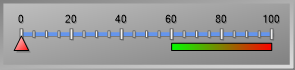
For standard Properties, Advanced, and Events Panel settings not covered here, please refer to the Common Object Features page.
Quick Design: Gauge Wizard
The most practical way to configure this object—determining whether it is “Linear” or “Circular” and setting its orientation—is to use the Wizard located in the Advanced panel.
- Open Wizard: Select the object and go to the Advanced panel. Click the button next to the Wizard row under the top Custom category.
- Gallery: In the window that opens, navigate to the Gallery tab from the menu on the left.
- Select Type: Open the “Gauge Type Groups” box and select Linear (for Thermometers, Rulers, etc.).
- Select Template: The templates in the gallery will transform into horizontal or vertical bars. Select a style you like from the menu on the right, pick the specific gauge, and click Finish.
- Result: Your gauge will transform into the selected professional design (colors, frame, needle type, etc.) within seconds.

Properties Panel – Key Properties
Once the appearance is set via the Wizard, you establish the tag connection here to make the gauge functional.
Value
- Default (Tag):
- Function: This is the main connection determining the position of the Pointer or the fill level of the bar.
- Usage: Bind an Int or Float type tag here (e.g., Tank_Level). As the tag’s value changes, the gauge updates with an animation.
Events
- Mouse Down / Mouse Up: Can be used to trigger an action (e.g., opening a detail page or resetting a counter) when the operator clicks on the gauge.
Advanced Panel – Key Properties
Beyond the Wizard, this panel is used to manually configure the gauge’s orientation (Horizontal/Vertical), limits, and colors. These settings are grouped under the Gauge Container.
1. Orientation
Determines whether the gauge lies horizontally or vertically.
- Path: Gauge Container -> LinearGauges (Collection) -> Orientation.
- Options:
- Horizontal: Horizontal placement (e.g., Ruler).
- Vertical: Vertical placement (e.g., Thermometer).
2. Scales (Min/Max)
Determines the operating range of the gauge.
- Path: Gauge Container -> LinearGauges -> Scales (Collection).
- Settings:
- Minimum: Start value (e.g., 0).
- Maximum: End value (e.g., 100).
3. Pointers
Changes the shape of the indicator that points to the value.
- Path: Gauge Container -> LinearGauges -> Pointers (Collection).
- Type:
- Marker: A sliding icon in the shape of a triangle, square, or diamond.
- Bar: A bar that fills up as the value increases, similar to mercury in a thermometer. (Ideal for tank level displays).
4. Colored Regions (Ranges)
Used to color specific intervals (e.g., Red for 80-100).
- Path: Gauge Container -> LinearGauges -> Scales -> Ranges.
- Settings: Identical to the CircularGauge. A region is created by defining StartValue, EndValue, and FillColor.
Common Usage Example
Example: Furnace Temperature Bar (Thermometer)
To display a furnace temperature between 0 and 250 °C as a vertical thermometer.
- Add a LinearGauge to the screen.
- Open the Advanced -> Wizard menu, select the “Linear” group, pick a vertical style (Thermometer look), and apply it.
- Go to the Advanced panel and follow the path: Gauge Container -> LinearGauges -> Scales.
- Set Minimum: 0
- Set Maximum: 250
- Select the object and return to the Properties panel.
- Bind the Furnace_Temp_Tag to the Value -> Default (Tag) property.
Result: In Runtime, as the temperature increases, the bar on the gauge will rise from 0 toward 250.