
RecipeManager
RecipeManager
The RecipeManager is an advanced management module used to save and edit production parameters in sets (groups) and to send (Load) these values to PLCs/Devices in bulk.
Example: You may need to adjust 50 different settings (Speed, Temperature, Weight, etc.) for “Product A” on a packaging machine. With RecipeManager, you can save these 50 settings under the name “Product A” once and load them into the machine with a single click when needed.
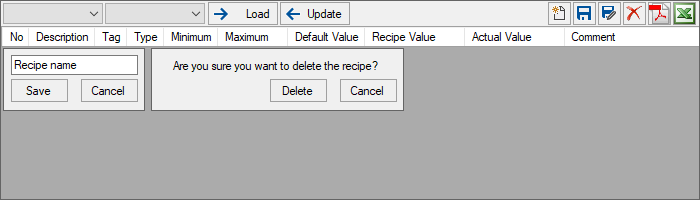
Basic Operating Principle
The Recipe Manager acts as a bridge between the database and PLC tags.
- DB -> PLC (Load): Retrieves the recipe values saved in the database and writes them to the relevant tags.
- PLC -> DB (Save): Reads the current live values from the tags and saves them to the database as a new recipe or an update.
Properties Panel – Key Properties
This panel controls the general state of the table.
- Visible: You can bind the visibility of the recipe screen to a tag.
Advanced Panel Settings
This panel determines the security of the recipe table and which recipe group it manages.
- FixedGroup (Important)
- Which “Recipe Group” defined in your project (e.g., Furnace_Recipes) will this table manage? Enter the name of that group here.
- Note: If left empty, the operator can switch between all available recipe groups.
- Security Levels (…PasswordLevel)
- Determines the authorization levels required for the operator to perform sensitive operations.
- LoadPasswordLevel: Authority required to load the recipe to the PLC.
- SaveAsPasswordLevel: Authority required to create a new recipe (Save As).
- SavePasswordLevel: Authority required to update an existing recipe.
- DeletePasswordLevel: Authority required to delete a recipe.
- ExportPasswordLevel: Authority required to export recipes to Excel/PDF.
Child Controls & Sub-Panels (Visual Customization)
Like AlarmView, RecipeManager is a composite structure. You can customize the buttons and pop-up windows (Save As Panel, Delete Panel) inside it individually.
Customization Example
To strictly prevent operators from deleting recipes.
- Find the _DeleteButton row in the Child Controls list.
- Click the “Properties” text next to it.
- In the window that opens, set the Visible property to False.
Runtime Usage
On the Runtime screen, operators manage recipes via the toolbar and the table.
Toolbar Functions
- Group and Recipe Selection (Top Left)
- The first box selects the recipe group, and the second box selects the saved recipes within that group (e.g., “Product_A”, “Product_B”).
- Load:
- Sends the values in the selected recipe to the corresponding tags in the PLC. (Database -> Device).
- Update (Read)
- Reads the current live values from the PLC and displays them in the table on the screen (Device -> Screen).
- Warning: This operation does not immediately save to the database; it only updates the display.
- New
- Opens the “Save As” panel to create a new recipe.
- Save
- Overwrites (updates) the selected recipe with the values currently shown in the table.
- Edit
- Used to rename the recipe.
- Delete
- Deletes the selected recipe from the database.
- PDF / Excel
- Exports the recipe content as a report.
Table Columns and Meanings
This table is critical for the operator to compare values:
- Description
- The name of the parameter (e.g., “Furnace Temperature”).
- Tag
- The connected PLC tag.
- Default Value
- The parameter’s default factory value.
- Recipe Value
- The value saved in the database. This is the value that will be sent to the device when the “Load” button is pressed.
- Actual Value
- The live value currently active in the PLC/Device.
Usage Tip: By comparing the Recipe Value with the Actual Value, the operator can verify whether the machine is running according to the recipe.