
Scripts
Scripts
SCADA programs allow you to implement complex automation logic beyond just monitoring and controlling data. Scripts enable you to add custom functions to your application, react to events, and go beyond the standard operation of the program.
In our program, there is a powerful script structure where you can manage automation and notification processes in three main categories:
- General Scripts: As the name suggests, these are scripts that run across the entire project. Time-based operations, data processing loops, or complex automation logic that needs to run continuously in the background independent of the user interface fall into this category. They generally define the project’s core data flow and business rules.
- SMS Scripts: These scripts are typically used to perform notification functions, such as automatically sending an SMS when a critical alarm is triggered or a specific condition occurs. This is a vital safety and operational tool ensuring field personnel are instantly informed of emergencies.
For detailed information, visit the SMS Scripts page.
- Screen Scripts: These scripts are triggered when a specific screen is opened, closed, or when an interaction occurs with an object (button, gauge, etc.) on the screen. They are ideal for adding dynamism to the user interface, changing object visibility, or performing screen-specific calculations.
For detailed information, visit the Screen Scripts page.
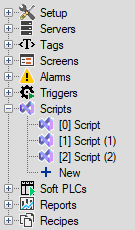
Script Management and Adding
To define a new script, use the New option under the Scripts main heading in the Project Tree on the left.
Each created script is automatically added to the list with a default name (e.g., Script, Script (1)).
You can give the script a meaningful name by changing this name in the Symbol column of the Scripts main window.
Scripts are created with a ready-made template in C# by default. You can switch to VB (Visual Basic) if you wish.
SMS scripts have a different template. Visit the SMS page for details.
Screen scripts have a different template. Visit the Screen Scripts page for details.
Scripts List
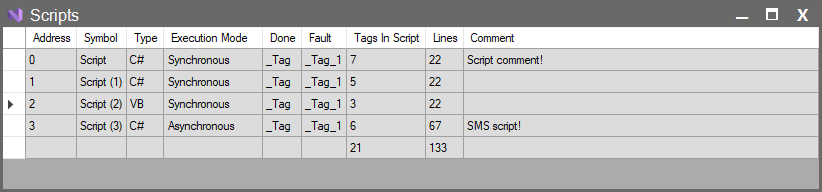
This is the main window listing all scripts created within your project. Each row represents a script and contains the fundamental components of your automation logic. This list allows you to quickly edit your scripts, check their status, and diagnose performance issues.
| Parameter | Description |
| Address | The sequence number or ID of the script within the system. It is the unique address the program uses to access this script. |
| Symbol | The display name of the script (e.g., Script (1)). Used to reference this script during coding or elsewhere. |
| Type | Specifies the programming language the script is written in (C# or VB). This indicates how the script will be processed by the compiler. |
| Execution Mode | Determines how the script will be executed: • Synchronous: The program waits until the script finishes. Ideal for fast and critical operations. • Asynchronous: The program continues its main functions while the script runs in the background. Used for long-running scripts or those with a risk of blocking. |
| Done | Specifies the tag to be set when the script finishes execution or completes successfully. |
| Fault | Specifies the tag to be set when an error occurs while the script is running. Important for monitoring error states and generating alarms. |
| Tags In Script | Shows how many different Tags are used within this script. |
| Lines | Indicates the total number of code lines inside the script. |
| Comment | Description area where the user notes the script’s purpose and function. |
Status and Error Indicators
The Script window and project tree offer various visual warnings and tracking mechanisms to monitor the health of your code. Errors are handled in two main categories:
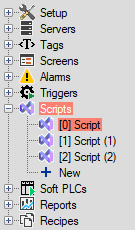
1. Compilation Errors (Red Highlight)
If there is a syntax error in your code (e.g., missing semicolon, unclosed parenthesis, or incorrect variable name), the system detects this during the compilation phase.
• The script’s name in the Project Tree or the row in the list is highlighted in red.
• You must open the script, fix the underlined errors in the code editor, and Compile the project again.
2. In-Cell Warning (Parameter and Tag Errors)
Even if your script code is error-free, if there is a problem with the tags you linked to the parameter columns (Done, Fault, Tags In Script) in the script list, the system notifies you with a red warning directly in that cell.
• The tag selected in the cell might have been deleted or removed from the project tree.
• The tag’s name might have changed, breaking the link here.
3. Runtime Tracking: Done and Fault
Even if the code syntax is correct, unexpected situations (e.g., divide by zero error, reading data from a disconnected device) may occur during runtime. To monitor these situations, BOOL type tags can be bound to the Done and Fault columns in the list.