
Script Editor
Script Editor
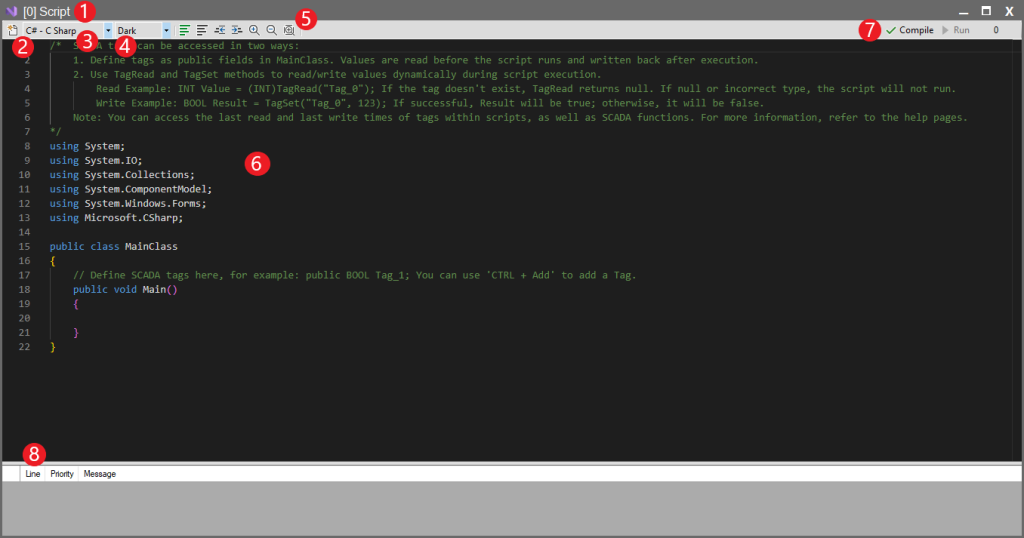
Editor Components
1. Title Bar
- Displays the name of the currently open script file. (e.g., [0] Script)
2. Reset Button
 |
Reset Button |
Resets the changes you made on the script page to their last saved state. |
3. Script Programming Language
- Can be selected as C# or Visual Basic (VB). The default script structure changes depending on your selection.
4. Theme
- Can be selected as Dark or Light theme.
5. Editor Toolbar
 |
Comment Out Selected Code |
onverts selected code lines into comment lines (//). This ensures the code is passivated without being deleted. |
 |
Uncomment Selected Code |
Reactivates the code by removing comment marks (//) from the beginning of selected lines. |
 |
Decrease Code Indentation |
Decreases the indentation level of selected code lines to the left. |
 |
Increase Code Indentation |
Increases the indentation level of selected code lines to the right. This improves code readability. |
 |
Zoom In |
Zooms in (enlarges) the text size in the code editor window. |
 |
Zoom Out |
Zooms out (reduces) the text size in the code editor window. |
 |
Zoom To Fit |
Automatically adjusts the text size to fit exactly within the width of the code editing window. |
6. Script Editing Area
- This is where you write your C# or VB code. A template is available for accessing SCADA tags and the general structure of the script. For more detailed information, you can visit the General Script Configuration page.
7. Control Buttons
 |
Compile |
Used to compile the script you wrote. If the script is faulty or has syntax errors, error/warning messages are displayed during this process (in the Message panel). A successful compilation indicates the script is ready for execution at runtime. |
 |
Run |
Allows the script to run instantly or via defined events (e.g., a button click, tag value change, time-based trigger). |
- Execution Time: Displays the time taken for script execution or compilation in milliseconds (ms), located next to the Compile and Run buttons. Compile time is not a significant indicator for the script’s Runtime performance. The first run of a script usually takes longer due to initialization.
8. Status Bar
- This section is the Output/Error List that appears after you compile your code. It assists the debugging process by showing the compilation status of your script, along with any errors and warnings in detail.
- Line: Shows the code line number relevant to the message. You should go directly to this line when debugging.
- Priority: Indicates the severity of the message. There are two main types:
- Error: A critical issue preventing code compilation. The script cannot be executed as long as there is an error. (Example: Missing semicolon, undefined variable).
- Warning: A message indicating a potential issue or violation of best practices that does not prevent code compilation. (Example: Defined but unused variable).
- Message: Contains a detailed description of what the problem is and why it occurred. If there are no issues, a “Success” message appears.