
Web Servers
Web Servers
Wise SCADA software offers the ability to monitor and control the screens you create via any web browser (Chrome, Edge, Safari, etc.). Thanks to this feature, you can access the system from your mobile devices or tablets, regardless of whether you are in the field or at the office.
You can define multiple web servers and determine different users and access privileges for each server. There is no software restriction on the number of screens or users; however, system performance depends on your hardware.
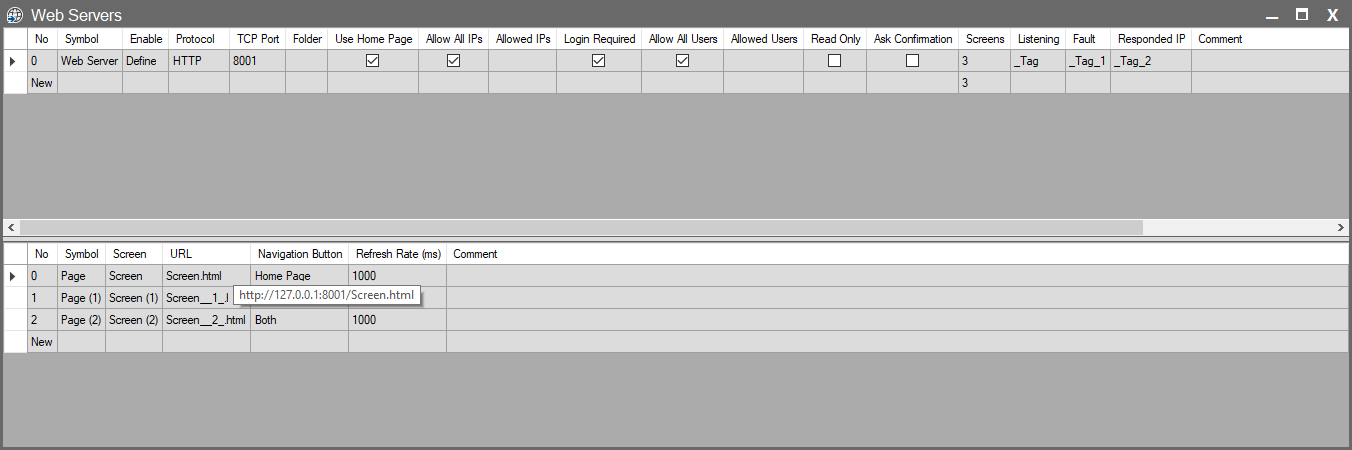
Web Server Configuration (Top Table)
This panel determines which port the web server will listen to, who can access it, and its general behavior.
| Column Name | Description |
| No | The index number of the server. Automatically assigned by the system. |
| Symbol | The display name of the web server. (Note: If Use Home Page is active, this name becomes the Browser Title.) see: Web Interface and Usage |
| Enable | Determines if the server is active. Clicking opens the Compare Dialog. Here, you can define a condition. Pressing OK opens the Conditions Dialog, where multiple Enable conditions can be added. If any of these conditions are valid, the server becomes active. Tip: Leave this field empty if you want the group to be always active. |
| Protocol | Determines which communication method the Web Server uses to serve clients. HTTP: Uses a standard web connection. HTTPS: Provides a secure connection by encrypting communication with TLS. When HTTPS is used, the certificate must be created and recognized as trusted on the required client computers. For detailed information, refer to the HTTPS page. |
| TCP Port | The port number the web server will broadcast on (Default: 80). Warning: If another application uses the same port, a conflict will occur. |
| Folder | The folder containing the HTML files to be published. The SCADA runtime generates these files automatically. |
| Use Home Page | Determines whether a welcome/landing page will be created. • Checked: The user is redirected to a summary page upon login. • Content: The text you write in the Comment column of this row appears as the Home Page content. see: Web Interface and Usage |
| Allow All IPs | If checked, access is allowed from all IP addresses. If unchecked, only those in the Allowed IPs list can enter. |
| Allowed IPs | Access-permitted IP addresses or ranges are defined here. |
| Login Required | Enforces a username/password requirement to view the web interface. |
| Allow All Users | If checked, all users in SCADA can log in. If not, only those in the list can enter. |
| Allowed Users | The list of specific users permitted to access the system. |
| Read Only | If checked, the web interface works in Monitoring Only mode; buttons and control commands are disabled. |
| Ask Confirmation | Shows a confirmation window to the user for critical operations (writing/sending commands). |
| Screens | Shows how many screens are published under this server. |
| Listening | Status information showing whether the server is currently listening to the port. |
| Fault | Shows if there is an error on the server (e.g., Port busy). |
| Responded IP | Shows the IP address of the last client that sent a request to the server (For debug purposes; a String type tag can be defined). |
| Comment | Description note about the server. (If Use Home Page is active, the text here becomes the home page content). |
Page Configuration (Bottom Table)
This section determines which SCADA screens will be published under the selected web server.
| Column Name | Description |
| No | The index number of the page. |
| Symbol | The name given to the page. (Note: This is the text written on the Navigation Buttons in the web interface). |
| Screen | The actual SCADA screen to be published on the web. |
| URL | The address extension of this screen in the browser (e.g., Screen.html). Note: When you hover over the URL field, the full access address of the page is displayed as a tooltip. If the protocol’s default port is used, the port number is not displayed in the URL. The default port is 80 for HTTP and 443 for HTTPS. When a different port is used, the port number is added to the URL. |
| Navigation Button | Determines the status of page transition buttons in the web interface: • No: No button is added. • Home Page: Only a return to home page button is added. • Each Page: Buttons to switch to other pages are added. • Both: Both the home page and other page buttons are visible. |
| Refresh Rate (ms) | The frequency at which the web page updates data (in Milliseconds). |
| Comment | Description note about the page. • This text appears as the Page Title in the browser. • It also appears as a Tooltip when hovering over navigation buttons. |