
Screens
Screens
The Screens section is the area where all screens (pages) to be displayed to the user during Runtime are defined and managed. These screens constitute the primary interfaces where the operator interacts with the system, monitors data, and performs control operations.
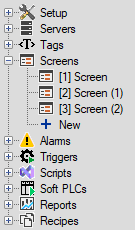
Screen Management and Adding
To create a new screen, use the New option under the Screens main heading in the Project Tree on the left.Each created screen is automatically added to the list with a default name (e.g., Screen, Screen (1)).You can give the screen a meaningful name by changing this name in the Symbol column of the Screens main window.
Screens Window
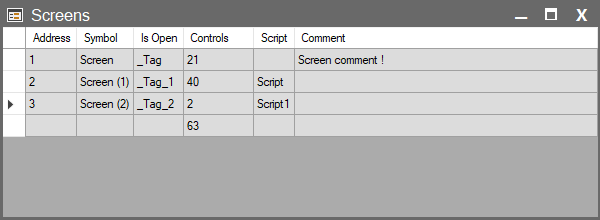
When the Screens main heading is selected, a window containing general settings for all screens in your project opens. This window includes basic information and general status indicators for each screen:
| Parameter | Description |
| Address | The sequence number of the screen within the system. Assigned automatically. |
| Symbol | The unique name of the screen within the project. It also appears with this name in the project tree. |
| Is Open | A BOOL type Tag is assigned to this field. The relevant bit becomes True when the screen is open during Runtime. Thus, the open/closed status of screens can be monitored via the tag. |
| Controls | Shows the total number of objects (controls) used on the screen. |
| Script | If there is a script bound to the screen, it is displayed here. Scripts can be linked to this screen via the Events section of the objects on the page. (See: Screen Scripts Section for detailed information). |
| Comment | Used to add descriptions or notes regarding the screen. |
Status and Error Indicators
Colored highlights and warning icons seen in the Project Tree or Screens list rows provide information about compilation status, connection validity, or missing definitions. These indicators allow you to notice errors before compiling the project.
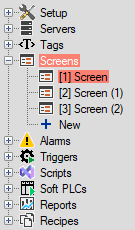
Red Highlight
If a screen name is highlighted in red, it means there is an unresolved error or warning on that screen. This is usually caused by:
A Tag used on the screen has been deleted or become invalid.
An object’s Event script is corrupted.
An object’s function structure is corrupted.
The red highlight is displayed both in the Project Tree (left panel) and on the relevant row in the Screens window.
Warning Icon in Screens Window
If there is a warning icon in a column, the system has detected a specific problem related to that screen.
In Controls column: The connection of an object on the screen is incorrect or missing (e.g., deleted tag, broken function).
In Script column: The script bound to the screen may not be compiled correctly or contains a structure that will cause an error at runtime.
Tip:
To resolve error conditions on screens, first open the relevant screen and check the Tag or Event connections of the objects.
Then, ensure the project is recompiled by performing a Compile operation. If no errors are found after compilation, the red highlight is automatically removed.
Screen Usage Notes
- Each screen works independently, and multiple screens can be open simultaneously during Runtime.
- Transitions between screens are usually made via Button, Event Trigger, or Script functions.
- Multiple copies of the same screen (e.g., motor1, motor2) can be made dynamic using the Tag Binding method.