
Screen Toolbar
Screen Toolbar
Located at the top of the screen editor, this toolbar is used to manage the placement, alignment, and resizing of objects on your screen.
 |
Rescale Screen |
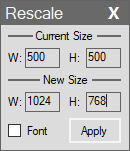
Clicking this button opens the “Rescale” window. This tool allows you to rescale your current screen from its “Current Size” to a defined “New Size”, while proportionally preserving the positions and dimensions of all objects inside (including Fonts). |
 |
Show/Hide Size/Location Panel |
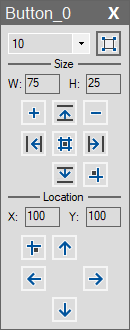
Toggles the panel that displays basic size and location settings for the selected object (e.g., a Button, Label, or Panel) or the screen itself if no object is selected.
|
 |
Enable Snap Lines |
Enables or disables the orange and blue snap lines that appear while dragging objects to show whether they are aligned with other elements. This facilitates perfect alignment of objects during the design process. |
Alignment Tools
 |
Align Left |
Aligns the left edges of the selected objects, using the leftmost object as the reference. |
 |
Align Horizontal Center |
Centers the selected objects relative to each other on the horizontal axis (X). |
 |
Align Right |
Aligns the right edges of the selected objects, using the rightmost object as the reference. |
 |
Align Top |
Aligns the top edges of the selected objects, using the topmost object as the reference. |
 |
Align Vertical Center |
Centers the selected objects relative to each other on the vertical axis (Y). |
 |
Align Bottom |
Aligns the bottom edges of the selected objects, using the bottommost object as the reference. |
Distribute Tools
|
|
Distribute Lefts |
Horizontally equalizes the distance between the left edges of the selected objects. |
|
|
Distribute Centers |
Horizontally equalizes the spacing between the center points of the objects. |
|
|
Distribute Rights |
Horizontally equalizes the distance between the right edges of the objects. |
|
|
Distribute Tops |
Vertically equalizes the distance between the top edges of the selected objects. |
|
|
Distribute Middles |
Vertically equalizes the spacing between the middle points of the objects. |
|
|
Distribute Bottom |
Vertically equalizes the distance between the bottom edges of the objects. |
Sizing Tools
 |
Make Same Width |
Sets the width of the selected objects to match the reference object. |
 |
Make Same Height |
Sets the height of the selected objects to match the reference object. |
 |
Make Same Size |
Sets both the width and height of the selected objects to match the reference object. |
Object Ordering (Z-Index)
 |
Bring to Front |
Brings the selected object to the very front of all other overlapping objects |
 |
Bring Forward |
Moves the selected object one layer forward in the stacking order. |
 |
Send to Back |
Sends the selected object to the very back of all other objects. |
 |
Send Backward |
Moves the selected object one layer backward in the stacking order. |
 |
Full Screen View |
Shows how the screen will appear to the operator in Runtime mode. |