
Properties Panel
Properties Panel
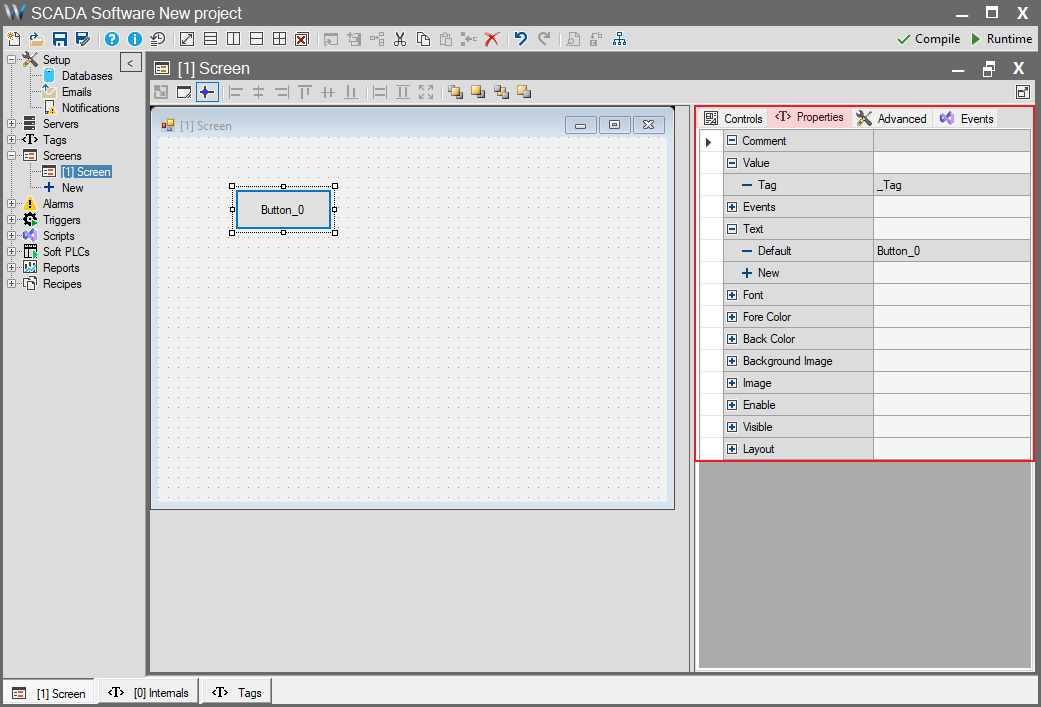
The Properties and Advanced panels allow you to manage the attributes of objects on SCADA screens (buttons, indicators, panels, etc.).
- Properties panel: Controls the appearance and behavior of objects.
- Advanced panel: Contains more technical and dynamic settings.
When used together, these panels transform screens from static drawings into live, interactive interfaces.
Conditional Logic
Most properties consist of two main components:
- Default: The static setting for the object; used when no condition is met.
- + New (New Condition): Allows you to define dynamic conditions. When a condition is met, it overrides the default setting and applies the new value.
This logic enables objects to respond to the real-time state of the process. If multiple conditions are met, the topmost condition takes precedence.
Common Properties and Usage
| Property | Description | Example |
| Comment | Adds technical notes or operator hints to the object. | “Motor button – Operator can only press START” |
| Value | Binds the object’s main value to a tag. | Display a tag in a Label; toggle a tag with a Button |
| Text | Defines the text displayed on the object. | Motor_Status true → “STOP”, false → “START” |
| Font | Changes the text font and style. | Alarm active → Bold, 10pt |
| ForeColor | Changes the text color. | Temperature > 80 → red |
| BackColor | Changes the background color. | Motor_Status true → Green, Motor_Error true → Red |
| Background Image | Assigns different images to the object. | Fan_Status true → “fan_rotating.png”, false → “fan_stopped.png” |
| Enable | Determines whether the object is operable. | START button disabled if there is an error |
| Visible | Determines whether the object is visible. | Red warning icon appears if alarm active |
| Layout | Allows dynamic positioning and sizing of the object. | Panel height changes according to tank level |
Events
When an object is interacted with (press, release), SCADA functions can be executed.
Example: Creating a motor “Jog” (slow run) button:
- Mouse Down: Set Motor_Jog tag = true using the Tag function
- Mouse Up: Set Motor_Jog tag = false
These actions can be easily configured through the Function Dialog.
Tag Binding
This is a screen-specific feature that allows a screen to be reused as a template (Faceplate) with different tag groups (e.g., “Motor 1”, “Motor 2”).
For detailed usage, see Tag Binding.
Summary
- The Properties panel manages the value, text, color, font, background, accessibility, and visibility of objects.
- Use + New to define dynamic conditions and make screens interactive.
- Proper use of this panel enables SCADA screens to respond in real time to process conditions with live, interactive interfaces.