
AlarmView
AlarmView (Alarm Viewer)
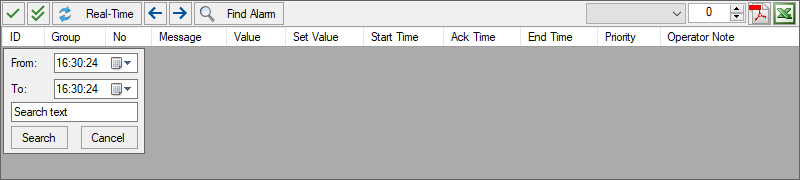
AlarmView is an advanced, All-in-One table used for Real-Time monitoring, Historical querying, Acknowledging, and reporting of alarms generated in your project.
It is not merely a standard data table; it is a fully equipped alarm management center featuring integrated filtering menus, export options, and acknowledgment mechanisms.
For standard Properties, Advanced, and Events Panel settings not covered here, please refer to the Common Object Features page.
Basic Configuration (Most Critical Step)
The AlarmView object MUST have a database connection to function.
- Database Definition: First, the database where alarms will be logged (SQL Server, MySQL, or SQLite) must be defined in the “Databases” section of your project.
- Connection Selection (Advanced Panel): Select the AlarmView object and go to the Advanced panel. Under the 0. Settings category, find the Database property and select the database you defined earlier.
Note: If a database is not selected, the object will appear empty and will not display any alarms.
Properties Panel – Key Properties
- Visible / Enabled
- Can be bound to various conditions to hide the entire table or render it inactive (grayed out).
Advanced Panel – Key Properties
Settings (General Settings)
- Database (VERY IMPORTANT)
- The database connection from which alarms will be read.
- ViewMode
- Determines the default opening mode of the table.
- Active: Lists only currently ongoing alarms. When an alarm condition returns to normal (e.g., sensor fixed), that row is automatically removed from the list.
- Historical: Lists all past events recorded in the database, regardless of whether they are currently active. All movements, such as when an alarm started, ended, and was acknowledged, are displayed chronologically.
- Acknowledge: Typically used to filter Active alarms that have not yet been seen or acknowledged (Unacknowledged) by the operator.
- FixedGroup
- If you want this table to display only a specific alarm group (e.g., “Fire_Alarms”), enter that group’s name (ID) here. If left empty, it displays all groups.
- FixedPriority
- Used to display alarms of only a specific priority level (e.g., Critical).
- MaxRows
- The maximum number of rows to fetch from the database at one time to preserve performance (Default: 1000).
- ResetTime
- The time (in seconds) to wait before the screen automatically reverts to “Real-Time” mode after filtering operations.
- AckAllPasswordLevel / AckPasswordLevel
- The minimum authority level required for the operator to use the “Acknowledge All” and “Acknowledge” buttons. (0 = No Password).
- ExportPasswordLevel
- The authority level required to use the Excel or PDF export buttons.
Child Controls & 2. Filter Panel Controls (Visual Customization)
AlarmView is a composite object containing many buttons, labels, and input boxes. These lists allow you to access each individual part within the object.
- How to Use?
- Example: If you do not want the operator to take PDF outputs:
- Find the _PDFButton row in the Child Controls list.
- Click on the text Properties next to it.
- In the window that opens, set the Visible property to False.
- What Can Be Changed?
- Text on buttons (e.g., changing “Find” to “Search”).
- Colors, Fonts, and Icons.
- Visibility (Visible) and Activity (Enabled) states.
- Table column headers (_ResultGridColumns).
Runtime Usage
Operators use the following tools on the Runtime screen:
Toolbar
- Ack (Single Acknowledge)
- Acknowledges the selected alarm. The current time is written to the alarm’s “Ack Time” column, and flashing stops.
- Ack All
- Acknowledges all displayed alarms in the list at once.
- Real-Time Mode
- Cancels filtering and returns to the most current, live alarm list.
- Navigation
- Allows navigation between pages of past alarms.
- Find Alarm (Filter)
- Toggles the detailed search panel on/off.
- Export
- Exports the current list in PDF or Excel format.
Filtering Panel (Find Alarm)
The panel that opens when the Find Alarm button is pressed:
- From / To (Date Range)
- Used to query alarms within a specific time range.
- Search Text
- Used to search for a specific word (e.g., “Motor 1”) within the alarm message.
- Search
- Sends the query to the database and lists the results.
Tip: Operator Note
The “Operator Note” column allows operators to right-click on an alarm row and enter special notes regarding that fault (e.g., “Sensor replaced”). These notes are permanently stored in the database.