
Alarms
Alarms
The Alarms section is where all fault, warning, and status-change conditions that are critical for system safety and operational continuity are defined.
Alarm conditions created here are continuously monitored during Runtime, and visual and/or audible notifications are generated when the conditions become true.
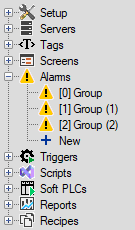
Alarm Management and Adding New Alarms
To create a new alarm, use the New option under the Alarms heading in the Project Tree on the left panel.
Each newly created alarm group is automatically added to the list with a default name
(e.g., Group, Group (1)).
You can rename a group from the Symbol column in the main Alarms window to give it a meaningful name.
All definitions in this window form the data source for the AlarmView object displayed in the Runtime screen.
Alarm Groups
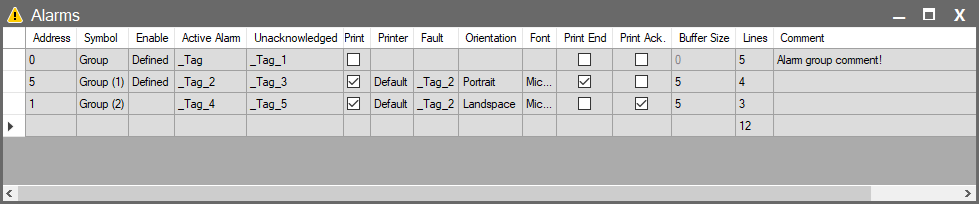
When you select Alarms in the Project Tree, a window opens where you can configure the general behavior of all created alarm groups.
| Parameter | Description |
| Address | The index number of the alarm group. |
| Symbol | A unique name assigned to better identify the alarm group. This is the name displayed in the Project Tree and can be modified here. |
| Enable | Determines whether the group is active. Clicking opens the Compare Dialog, where you can define a condition. When confirmed, the Conditions Dialog appears, allowing multiple Enable conditions. Any valid condition is sufficient for the group to be active. Tip: Leave this field empty if the group should always remain active. |
| In Alarm | Becomes True if any alarm within the group is active. |
| Unacknowledged | Becomes True if there are alarms in the group that have not yet been acknowledged by the operator. |
| Determines whether alarm events will be sent to the printer. | |
| Printer | Selects the printer to which the output will be sent. |
| Fault | Becomes True when a printing error occurs. |
| Orientation | Print orientation (Portrait, Landscape). |
| Font | Defines the font family, style, and size used in alarm printouts. |
| Print End | Specifies whether a message will be printed when the alarm ends. |
| Print Ack. | Specifies whether a message will be printed when the alarm is acknowledged. |
| Buffer Size | Maximum amount of data to be sent to the printer. 0 (Zero): Dot-matrix mode — each alarm event is printed immediately as a single line. >0 (e.g., 50): For page printers (Laser/Inkjet). Alarms are stored until the specified number of lines is reached, then printed as a full page. Note: When the program closes, remaining buffered lines are printed even if the buffer is not full. |
| Lines | Total number of alarms defined inside the group. |
| Comment | A descriptive note for the group. |
Status and Error Indicators
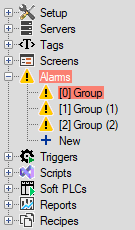
Colored highlights shown in the Project Tree or in the rows of the Alarms list help detect configuration issues before compilation.
Red Highlight
If an alarm row or the Alarms node in the left tree is highlighted in red, it indicates one or more unresolved errors. Common causes include:
Warnings in the lines column (Group-Level Errors)
• If an alarm group contains errors in its general setting (such as Enable conditions), a warning icon appears in the Lines column.
Cell-Level Warnings (Tag and Parameter Errors)
• Warnings appear directly in the related cell if there is an issue with parameters such as Enable, Active Alarm or Unacknowledged.
• A referenced Tag has been deleted or removed from the Project Tree.
• The Tag’s data type is incompatible with the required operation.