
Creating and Assigning a Screen Script
Creating and Assigning a Screen Script
Screen Scripts are the first step to adding customization to your screens. Only one script file can be assigned to a screen, and all events are managed within this central file.
There are two basic methods to create a Screen Script and assign it to the relevant screen:
Method 1: Assignment via the “Screens” Window
This is the quick assignment method using your SCADA project’s main “Screens” list.
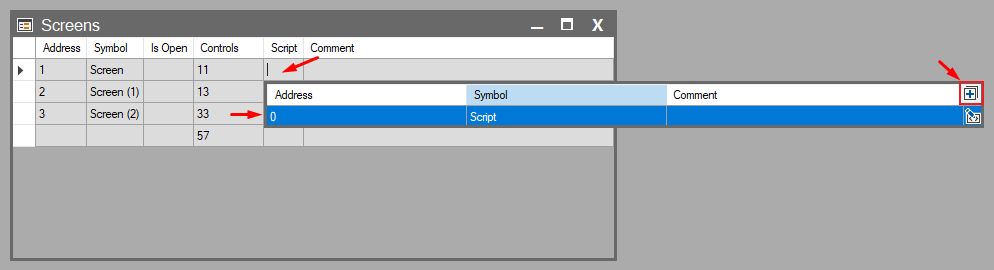
- Open the “Screens” window in your project.
- Click on the “Script” column in the row corresponding to the relevant screen. A script selection window will open.
- Script Creation/Selection:
- Select Existing: If you have a previously created script file, you can assign it to the screen by selecting it from the list.
- Create New: Click the (+) icon in the top right corner of the window. Give your new script a name in the pop-up. This creates a new C# script. Click the same column again to select this newly created script.
Method 2: Assignment via Object Events
This method is usually preferred during the screen design phase, right when you need to write code for a specific event.
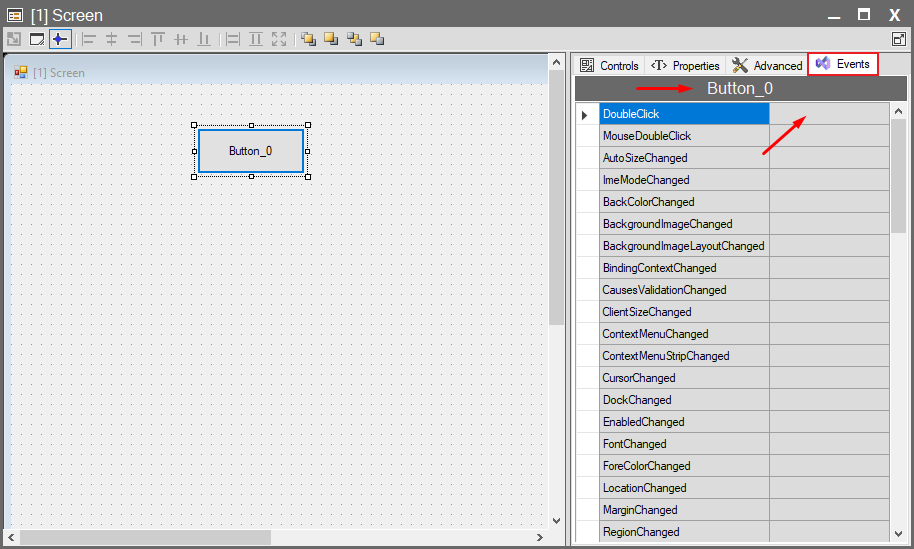
- Select the screen itself (Form) or any object (Button, Text Box, etc.) on the screen. Switch to the Events tab on the right panel.
- Click the empty cell next to the event you want to assign a script to (e.g., Screen_Load, MouseDoubleClick). A script selection window will open.
- Script Creation/Selection:
- Select Existing: Assign an existing script from the list to the screen.
- Create New: Create a new script file by pressing the (+) icon and assign it to the screen.
Important Rule: Centrality of the Assigned Script
Regardless of which method is used to create it or which event (Form event or Object event) triggers it:
Once a script is assigned to a screen, all future events added for any object on that screen or the screen itself are automatically directed to this central script file and defined as methods within it. From that point on, this screen will be managed by a single script file.