
SoftPLCs
Soft PLC (Virtual PLC Module)
The Soft PLC module allows you to create a fully integrated virtual PLC running directly within your Wise SCADA project.
Thanks to this feature, you can design, test, and run your automation and control logic (Ladder Logic – LD) directly on SCADA without the need for external physical PLC hardware. The Fulmatic Soft PLC engine included in Wise SCADA ensures high-speed data exchange between SCADA tags and the virtual PLC.
Soft PLC Management and Adding
- To create a new Virtual PLC, use the New option under the Soft PLCs main heading in the Project Tree on the left.
- Each created Soft PLC is automatically added to the list with a default name (e.g., Soft PLC, Soft PLC (1)).
- You can change this name from the Symbol column in the Soft PLCs main window.
- You can create multiple independent Soft PLCs in a project to separate different tasks (e.g., “Motor Control” and “Temperature PID”).
Soft PLC List
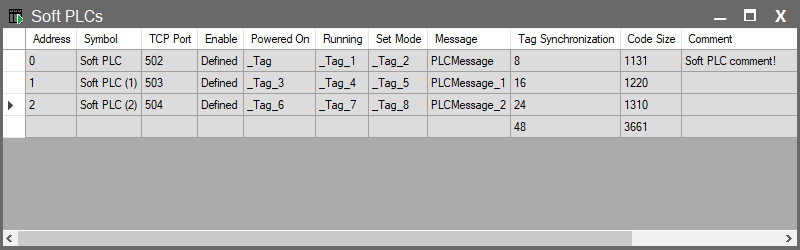
When you click on the Soft PLCs heading in the tree on the left, the main window containing the status and settings of all virtual PLCs in your project opens.
| Parameter | Description |
| Address | The unique identity (ID) number assigned by the system for each Soft PLC. |
| Symbol | The user-defined name you give to the Soft PLC (e.g., “Soft PLC (1)”). |
| TCP Port | The TCP port number the Soft PLC will use for external connections or monitoring. |
| Enable | Determines whether the group is active. Clicking opens the Compare Dialog. You can define a condition here. Clicking OK opens the Conditions Dialog, where multiple Enable conditions can be added. If any of these conditions are valid, the group becomes active. Tip: If you want the group to be always active, simply leave this field empty. |
| Powered On | Specifies the status tag indicating that the Soft PLC is “On” (energized). |
| Running | Specifies the status tag indicating that the Soft PLC is “Running” (in RUN mode). |
| Set Mode | Specifies the control tag used to change the operating mode of the Soft PLC (e.g., RUN or STOP). |
| Message | Displays status or error messages coming from the Soft PLC. |
| Tag Synchronization | Shows the total number of tags synchronized between this Soft PLC and SCADA. Double-click to open the Tag synchronization window. (See: Tag Synchronization Page for details). |
| Code Size | Shows the size of the compiled PLC code in bytes. |
| Comment | Description or note entered for the Soft PLC. |
PLC Programming and Editor
The internal Fulmatic PLC Editor is used to build the logic (Ladder diagrams) of your Soft PLC.
- Opening the Editor: Double-clicking on the Soft PLC row you created in the list (or its name in the Project Tree) opens the PLC Editor.
- Programming: You can write your automation scenario using Ladder Logic in the editor that opens.
For Detailed Information: Please visit the Soft PLC Editor page for usage of the PLC Editor, instruction sets, and programming techniques.
Important Notes
- Synchronization: “Tag Synchronization” settings must be configured for the variables you use inside the Soft PLC to appear on the SCADA side.
- TCP Port Conflict: If you are using multiple Soft PLCs, ensure that the TCP Port number for each is different (e.g., 502, 503, 504). Otherwise, a conflict will occur, and the PLCs will not start.