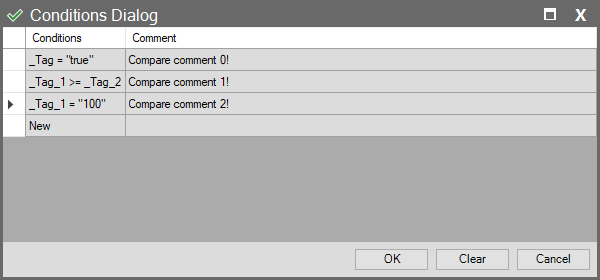
Conditions Dialog
Conditions Dialog
Use this dialog to define the list of conditions required for a function or action to run. When any of the conditions defined here are true, the relevant action is triggered.
- Conditions Column
You define a condition in each row. Open the Compare Dialog window by clicking the + New option to create a new condition or by double-clicking an existing row.
- Comment Column
You can add a short note explaining the purpose of each condition.
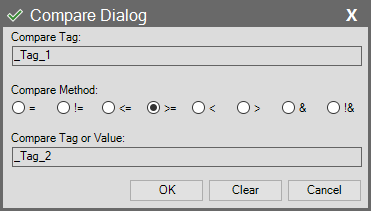
Compare Dialog
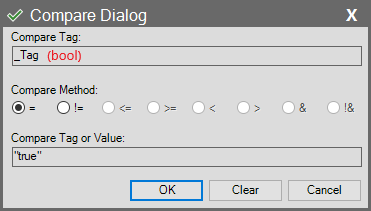
This dialog allows you to define a condition that compares a tag’s value with another tag or a constant value.
- Compare Tag
Select the tag that forms the left side of the comparison.
- Compare Method
Select the operator to use for comparing the two values:
- = : Equal to
- != : Not equal to
- <= : Less than or equal to
- >= : Greater than or equal to
- < : Less than
- > : Greater than
- & : Bitwise AND
- !& : Bitwise NAND
- Compare Tag or Value
Enter the tag or constant value that forms the right side of the comparison. When entering a constant value, you must enclose it in double quotes and ensure it matches the type and value range of the first selected tag (e.g., “true”, “100”, “-200”).
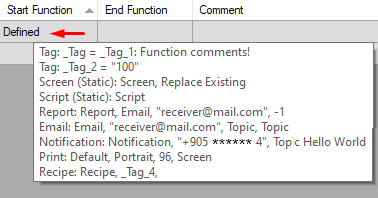
Note: In the Conditions Dialog window, defined conditions are indicated by the label Defined. Hover your mouse over the Defined text to view the content of this structure. This opens a list quickly showing all defined conditions and their comments in that row.