
Page Editor
Page Editor
This interface is the main design environment that appears when you open an HTML Page from the Project Tree or create a new one. The interfaces that operators will see during Runtime are designed here.
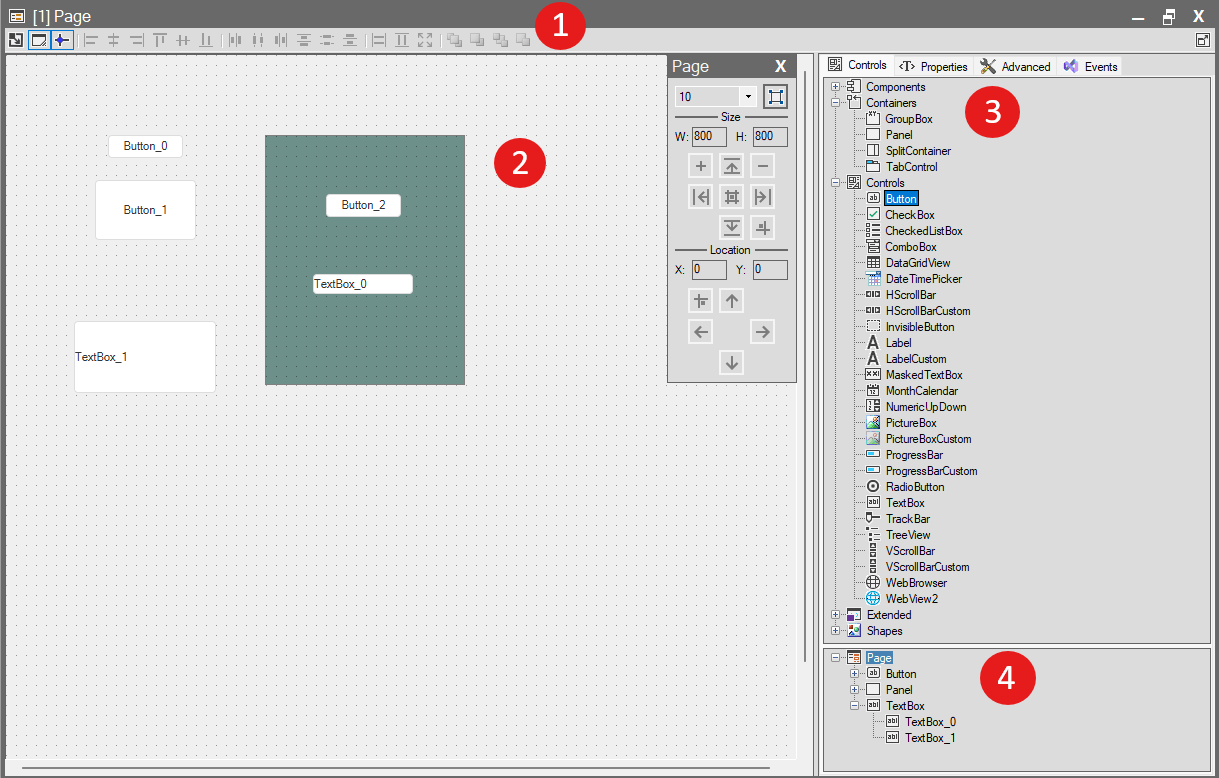
The interface has a very similar structure to the Screens editor and consists of 4 main sections:
1. Page Toolbar
It contains tools that allow you to perform operations such as aligning objects (left, right, center), equal sizing (width, height), scaling, and layer ordering (bring to front, send to back). (For detailed information, see: Page Toolbar)
2. Designer Area
This is the gridded area located in the center of the interface. This area is your “canvas”. It is where you position, resize, and arrange all the visual objects (Panel, Button, TextBox, etc.) that you drag and drop from the Controls panel on the right. Additionally, within this area, there is a quick access window that allows you to precisely adjust the Size and Location values of the selected objects.
3. Properties and Controls Panel
This is the main panel group located on the right side of the interface where all configurations are made. Similar to the Screens structure, it contains multiple tabs:
- Controls (Toolbox): The area where all the objects you can add to the page are listed. Objects are dragged from here and dropped into the designer area.
- Properties / Advanced / Events (Configuration Tabs): These are the tabs that allow you to configure an object when it is selected in the designer area.
- Properties: Configures the dynamic (Tag-linked) SCADA properties of the object. (See: Properties Panel)
- Advanced: Configures the static (default) web-based properties of the object. (See: Advanced Panel)
- Events: Assigns actions, such as clicking (“Click”), to object events. (See: Events Panel)
4. Page Object Tree (Objects Used in the Designer Area)
It provides a hierarchical tree list of all objects (Button_0, TextBox_1, etc.) currently in the designer area. It is used to easily select overlapping or hidden objects, or to understand the overall layout structure of the page (e.g., determining which object is inside which Panel or container).